If your phone photos look flat or too dark in one corner, the Snapseed selective tool is the fastest fix I know. It lets you brighten a face, calm a loud sky or boost one jacket colour without touching the rest of the picture. No layers, no masks, just a tap and a swipe.
I use it on almost every portrait I edit on my phone. Below is the exact routine I follow, plus the mistakes that make edits look fake, and a few ways to combine it with the Healing tool.
What the Snapseed selective tool actually does
Normal sliders like Brightness change the whole photo. Selective works on a small area instead. You drop a Control Point on the spot you care about, and Snapseed picks similar nearby colours and tones around that point. Google’s own help page describes it as tapping an area and swiping to adjust brightness, contrast or saturation for just that part.
Think of each point as a tiny, separate edit. You can add several points on one photo, each with its own values.
Step-by-step: your first selective edit
- Open your photo in Snapseed, tap Tools, then choose Selective.
- Tap the + (Add) button, then tap the area you want to change, for example the face.
- Pinch on the screen. A red overlay shows exactly what the point is affecting. Pinch wider or tighter until only the area you want is red.
- Swipe up or down to open the menu: Brightness, Contrast, Saturation.
- Swipe left or right to change the value. Go small. Plus 10 to plus 20 is usually plenty.
- Tap the tick to apply.
One thing trips up a lot of beginners: the point must be blue for pinching to resize it. If the dot is grey, pinching just zooms the photo. Tap the dot once to make it blue again.
Hold to compare
Press and hold on the image to see the before version. I do this after every single point. If you can clearly see the edit at first glance, it is probably too strong.
Three real-world recipes you can copy
Recipe 1: Portrait face lift
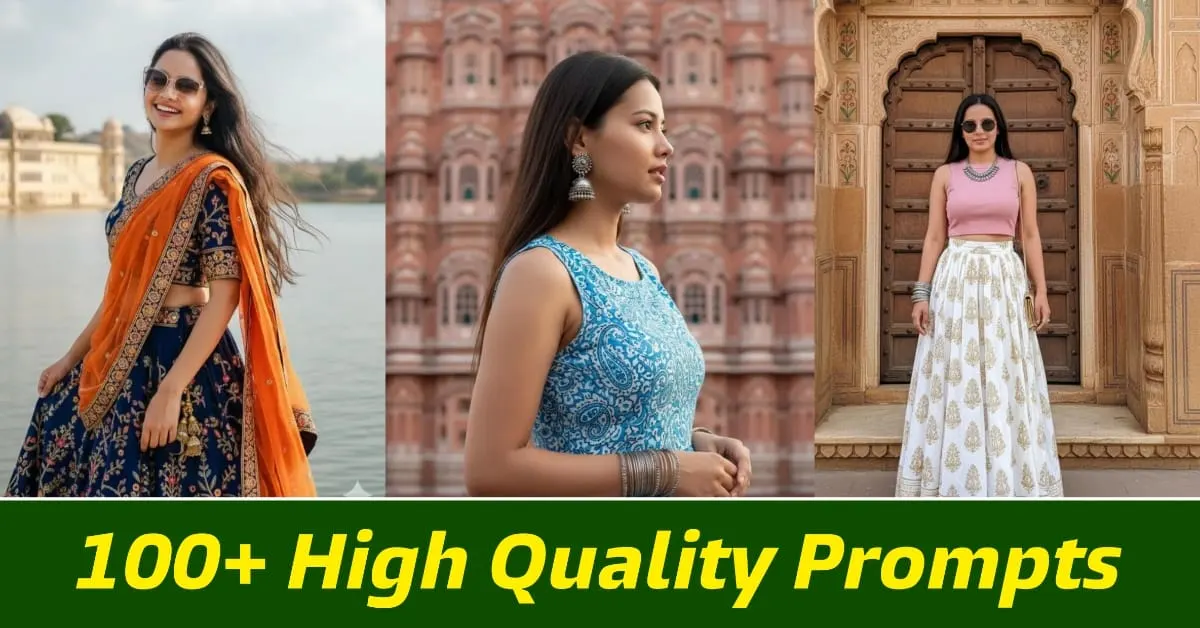
Place one point on the cheek. Pinch so the red covers the face but not the hair or background. Brightness plus 12, Contrast plus 5. Add a second point on the eyes with a small circle and Brightness plus 8. The face now separates from the background without looking glowing.
Recipe 2: Dull sky without blowing the photo
Put a point on the sky, enlarge the circle, and use Saturation plus 15 and Brightness minus 10. If the sky is white and has no detail, no slider will rescue it, so skip this one.
Recipe 3: Make a product or food shot pop
Tap the main item, shrink the circle, and raise Contrast plus 10 and Saturation plus 8. Then place a second point on the background and lower Brightness by 10 so the subject stands out.
The numbers above are my starting points, not rules. Every photo is different, so treat them as a first guess.
Fixing mistakes with Control Points
Long-press any Control Point and Snapseed shows options: Cut, Copy, Paste, Delete and Reset all changes. Copy and Paste is useful when you want the same warm skin tone on two people in one frame.
If you want to see the overall picture without the dots in the way, long-press the eye-style icon in the toolbar to hide the points while you judge the result.
Pair it with the Healing tool
Selective changes light and colour. Healing removes small distractions. Snapseed’s help page says you brush or tap unwanted spots and they disappear. It works by borrowing from the surrounding area, so it is best on standalone objects and plain backgrounds, and it struggles on busy, colourful areas.
My order is always the same: Healing first, Selective second. Snapseed’s help also notes that the order of tools matters, because each edit builds on the last. If you brighten a spot and then heal it, the patch can look mismatched.
- Zoom in with two fingers before brushing, so you cover only the blemish.
- Use short taps for tiny dots and a brush for thin things like wires.
- Undo and try a smaller stroke if you see a smudge.
Common mistakes I see
- Cranking Saturation. Skin goes orange fast. Stay under plus 15 on faces.
- Circles that are too big. The red overlay leaks into hair and background, and you get a halo.
- Too many points. If you need ten points, fix the base exposure with Tune Image first.
- Editing a tiny preview. Zoom in to check edges before you apply.
- Forgetting the grey dot. Pinching zooms instead of resizing, and you think the tool is broken.
Using AI first, Snapseed second
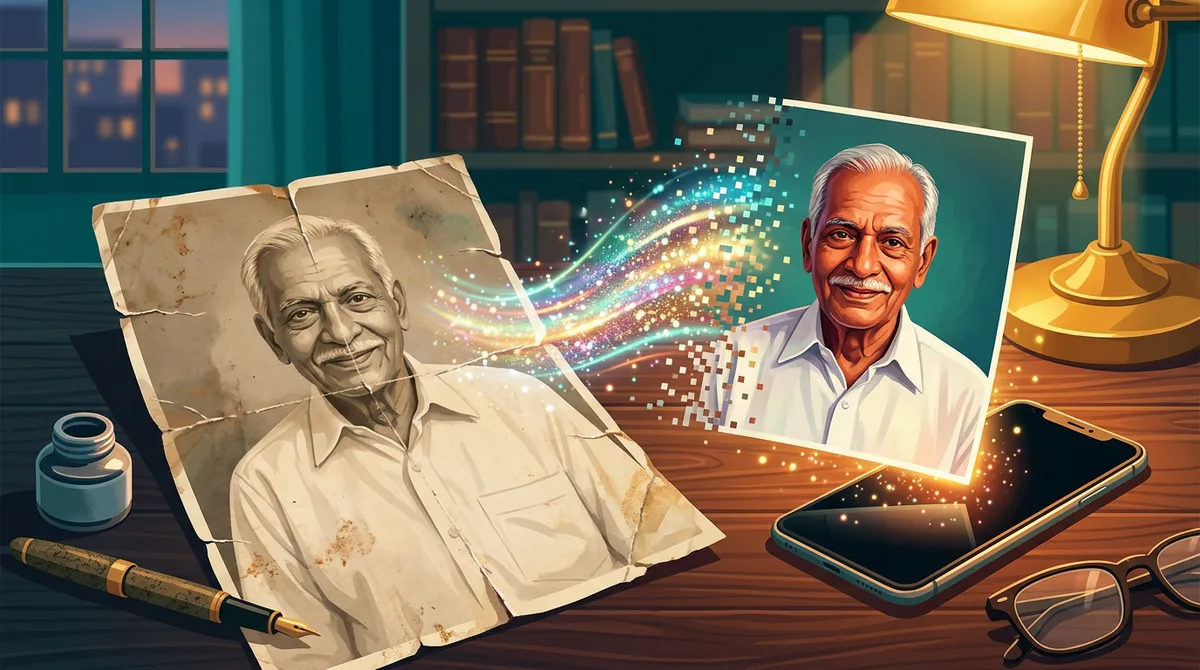
I often generate a base image with an AI tool and then polish it in Snapseed, because AI images sometimes have one over-bright corner. If you are new to that, my guide on how to write AI image prompts covers the first half. For restoring old family photos, see the Gemini old photo restoration prompt, and if you also edit video, the fixes in CapCut auto captions not working might save you time.
For the official steps and the full list of tools, Google keeps a reference page: Snapseed Help: Selective.
A before-you-export checklist
Before I save a photo, I run through the same short list. It takes under a minute and catches most problems.
- Hold the image to compare. Does it still look like the same moment, only cleaner?
- Zoom to 100 percent and look at hair edges and the border of every red overlay for halos.
- Check skin tone on a second screen or at a different phone brightness. Orange skin hides on a bright display.
- Look at the sky and shadows. If detail disappeared, lower the Brightness on that point.
- Export a copy and keep the original untouched, so you can redo the edit later.
I also keep a habit of editing in daylight, not in bed with the screen at full brightness. Photos edited that way usually look too dark on other phones, and then I overcorrect. A neutral room and medium brightness give the most honest result.
Quick wrap-up
It is also a good habit to save your favourite values in a note on your phone, so the next edit starts from a known place instead of from zero.
Add a point, pinch to check the red area, swipe small amounts, and compare often. Heal distractions before you adjust light. That routine alone will make most phone photos look cleaner than a heavy filter ever could.
FAQ
Is the Snapseed selective tool free?
Yes. Snapseed’s store listing describes its tools as free, with no subscriptions, ads or watermarks.
Why can’t I resize the selection circle?
The dot is probably grey. Tap it so it turns blue, then pinch. A grey dot means pinching zooms the photo instead.
Can I use more than one Control Point?
Yes. Each point keeps its own brightness, contrast and saturation values, and you can copy, paste or delete them with a long press.
Should I use Healing before or after Selective?
Healing first. Tools stack in order, so removing blemishes before adjusting light gives cleaner patches.