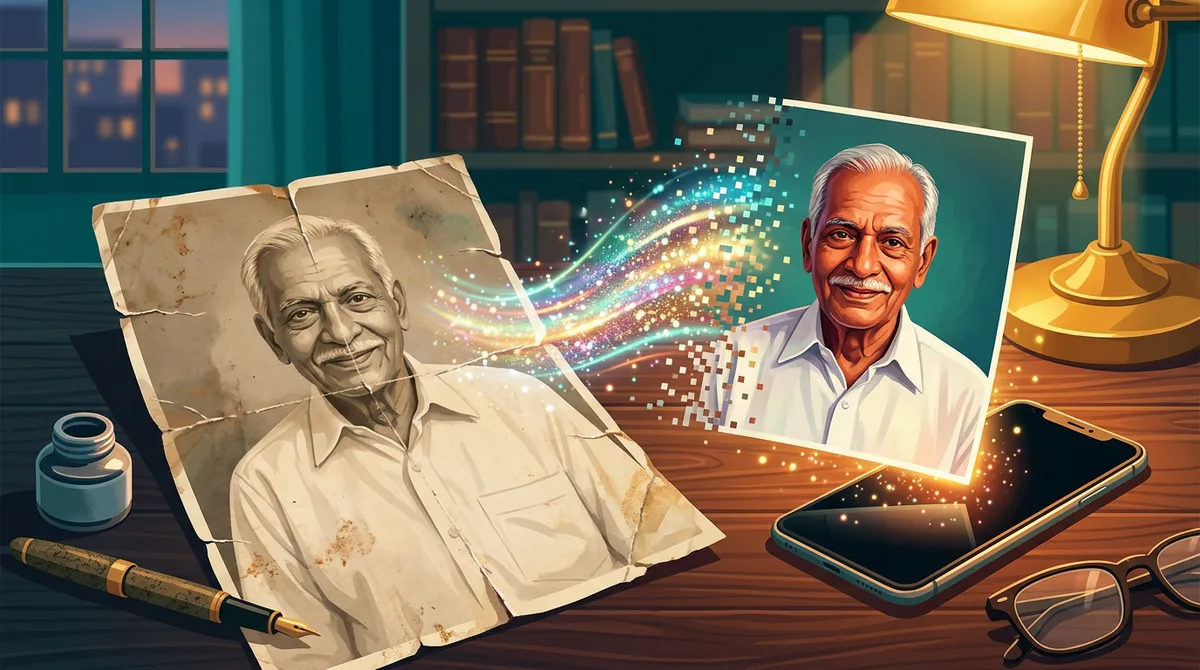
Last month my aunt handed me a shoebox of family prints. Most were from the 1970s and 80s: yellowed, creased, one with a coffee ring right across my grandfather’s shoulder. I spent a weekend running them through Gemini, and I learned fast that the first Gemini old photo restoration prompt you find online usually gives you a sharp, glossy photo of someone who looks almost like your grandfather. Almost isn’t good enough when it’s family.
This guide is what I wish I’d known before that weekend: how to prepare the photo, which prompt to use for which kind of damage, and how to fix the result when the face drifts.
Why Most Restoration Prompts Change the Face
Gemini’s image model doesn’t “repair” a photo the way a retoucher does. It looks at what’s there and redraws the image. When the original is blurry, the model has to guess, and prompts full of words like “DSLR quality”, “8K” or “ultra sharp” push it to guess boldly. That’s where new jawlines, perfect teeth and smooth skin come from.
So the rule I follow is simple: ask for repair, not for a makeover. Tell the model exactly which damage to fix, and list what must stay the same. If you’re new to prompt structure, my 6-part formula for writing AI image prompts explains the basics; restoration is the one case where the “editing instructions” part matters more than style words.
Step 1: Get a Clean Copy of the Print
Garbage in, garbage out. A good copy saves you more retries than any prompt.
- Use a scanner if you can. Scan at 600 dpi or more. Small prints (passport or wallet size) benefit from 1200 dpi.
- No scanner? Shoot it in daylight. Lay the print flat near a window, not in direct sun. Turn the flash off. Hold the phone parallel to the photo so the edges don’t look like a trapezoid.
- Kill the glare. Glossy prints reflect. Tilt the print slightly or shade it with your body until the white patches disappear.
- Crop out the background. Crop to the print’s edge before uploading. A table or album page in the frame confuses the model.
- Keep the untouched original. Always save the raw scan. You’ll compare against it later.
Step 2: Match the Prompt to the Damage
Different damage needs different instructions. These are the templates I actually use. Copy them, then change the bracketed parts.
Template A: Faded or yellowed print, faces still clear
Prompt: “Restore this old photograph. Correct the yellow and faded colour cast, rebalance contrast, and remove dust specks. Keep every face, expression, hairstyle, clothing and the background exactly as they are. Do not smooth skin or add detail that isn’t in the original.”
Template B: Scratches, creases and tears
Prompt: “Repair the physical damage in this photo: the crease running [across the top left], the scratches, and the torn [bottom right corner]. Rebuild only the damaged areas so they blend with the surrounding texture. Leave the people’s faces, poses and clothes unchanged. Keep the original framing.”
Naming where the damage is helps a lot. “The crease across the man’s shoulder” works better than “remove creases”.
Template C: Black-and-white to colour
Prompt: “Colourise this black-and-white photo from the [1960s, India]. Use natural, slightly muted colours suited to that period, and realistic skin tones. The [saree is a dark colour, the wall is plain]. Do not change faces, clothing shapes, or the background.”
Gemini can guess colours from historical context, but it can’t know your grandmother’s saree was maroon. If the family remembers a colour, put it in the prompt.
Template D: Blurry, low-detail faces
Prompt: “Improve clarity in this photo only where real detail exists. Reduce noise and soften the blur slightly. Do not create new facial features, do not change the shape of the eyes, nose or mouth, and do not make anyone look younger. A slightly soft but accurate result is better than a sharp, different face.”
That last sentence is my favourite trick. It gives the model permission to stop.
Step 3: Run It in Gemini, One Job at a Time
Here’s the workflow that gave me the most faithful results:
- Open the Gemini app or gemini.google.com and start a new chat.
- Upload the scan and paste one template, usually B or A first.
- Download the result and put it next to the original. Zoom in on the eyes and mouth.
- If the repair is good, ask for the next job in the same chat, for example colourising. Gemini remembers the image it just made, so follow-up edits build on it.
- Stop after two or three rounds. Every new pass is another chance for the face to drift.
Doing repair and colour in two steps sounds slower, but each step is a smaller change, and smaller changes keep the likeness. I covered the basic upload-and-prompt flow in my step-by-step Gemini photo guide if you need the screens explained.
Before and After: What Changed in My Grandfather’s Photo
To make this concrete, here’s what happened with that coffee-stained print.
- First try (a viral “make it DSLR 8K” prompt): crisp image, but his moustache got thicker, his ears were reshaped, and the plain wall behind him turned into a studio backdrop. My aunt said, “Who is this?”
- Second try (Template B, naming the stain on his left shoulder): the stain was gone, the shirt texture matched, and his face was untouched. Still slightly soft, still yellow.
- Third step (Template A in the same chat): the yellow cast cleared and the contrast came back. That’s the version we printed.
The fix wasn’t a better model. It was a narrower prompt.
Troubleshooting: Fix Prompts for Common Problems
When something goes wrong, don’t start over. Reply in the same chat with a short correction.
- The face looks like someone else: “Undo the changes to the face. Match the original photo’s eye shape, nose, and mouth exactly, even if it is less sharp.”
- Skin looks plastic or airbrushed: “Bring back natural skin texture, wrinkles and pores from the original. No beauty smoothing.”
- Background was replaced: “Keep the original background from the uploaded photo. Only repair the damage.”
- Colours look too bright or modern: “Make the colours more muted and natural, like a real photo printed in the [1970s].”
- The crop or framing changed: “Keep the same framing and aspect ratio as the original. Don’t zoom or extend the image.”
- Extra people or objects appeared: “Remove anything that is not in the original photo.”
If two corrections don’t fix it, go back to the original scan and start a fresh chat with a narrower prompt. A long chat full of corrections tends to get messier, not better.
Common Mistakes I See (and Made)
- Stacking hype words. “Hyper-realistic, 8K, cinematic, ultra HD” tells the model to invent detail. Leave them out.
- Asking for everything at once. Repair + colour + sharpen + new background in one prompt almost always changes faces.
- Uploading a screenshot of a WhatsApp forward. Those are heavily compressed. Ask the family member for the physical print or the original file.
- Not comparing side by side. On a phone screen, a changed face looks “fine”. Put both images next to each other at the same size.
- Making group photos as one job. In a group shot, the small faces in the back drift the most. Check every face, not just the main one.
A Quick Word on Honesty
A restored photo is an AI reconstruction, not a recovered original. Anything that was truly lost (a torn-off corner, a face lost to water damage) is the model’s best guess. When I share restorations with family, I keep the original scan in the same folder and label the edit clearly. For important records, like documents or ID photos, don’t use AI restoration at all.
If you enjoy family edits, the same “keep the faces exactly the same” approach works for other edits too. I used it in my guide to realistic couple photos with Gemini.
Wrapping Up
A good Gemini old photo restoration prompt does three things: it names the damage, it lists what must not change, and it asks for one job at a time. Start with a clean scan, compare every result against the original, and use short correction prompts instead of starting over. Google describes restoring and colourising old photos as one of the things its Nano Banana image model is built to handle; you can read their own tips on the official Google blog.
Pick the photo that matters most to you, try Template A or B, and see how close you can get to the person you remember.
FAQ
What is the best Gemini old photo restoration prompt?
There’s no single best one. A prompt that names the specific damage and says “keep every face, expression and background exactly as they are” beats generic “make it HD” prompts almost every time.
Why does Gemini change faces when restoring photos?
Blurry areas force the model to guess. Words like “8K” or “ultra sharp” make it guess more. Ask for accuracy over sharpness and tell it not to change facial features.
Should I colourise and repair in one prompt?
I’d split them. Repair first, then colourise in the same chat. Two small changes keep the likeness better than one big one.
Can Gemini restore a completely torn or missing part?
It can fill the gap, but that area is invented, not recovered. It’s fine for backgrounds and clothes. Be careful when the missing part is a face.