You upload a clear selfie, ask Gemini for a festival look, and the person who comes back is a cousin of yours, not you. The smile is different, the jaw is sharper, sometimes the glasses vanish. If you want to keep face same in Gemini while changing everything else, the fix is almost never a magic word. It is the order and the shape of your prompt.
I ran the same photo through two prompts, one lazy and one structured, and kept both results so you can see the difference yourself. Everything below comes from that test and from Google’s own guidance on editing photos of people.
Why Gemini changes your face in the first place
Google says its image model in the Gemini app is built to keep people and pets looking like themselves across edits, and that it can hold a likeness while you change outfits, lighting or the whole scene. You can read this in the official Google tips for Gemini image editing. The promise is real, but it depends on what you tell the model to leave alone.
When your prompt says “make it look cinematic and beautiful”, you have given the model permission to redo everything. “Beautiful” quietly includes the face. It will smooth, reshape and re-light the whole frame, and a face is just one more thing in that frame.
Three things that make drift worse
- Vague adjectives. Words like beautiful, stunning or cinematic are about the whole picture, face included.
- Asking for many changes at once. Outfit, background, mood and pose in one line gives the model too many places to improvise.
- A long chat. After six or seven edits in one thread, small errors pile up and the face walks away from the original.
My test: one photo, two prompts
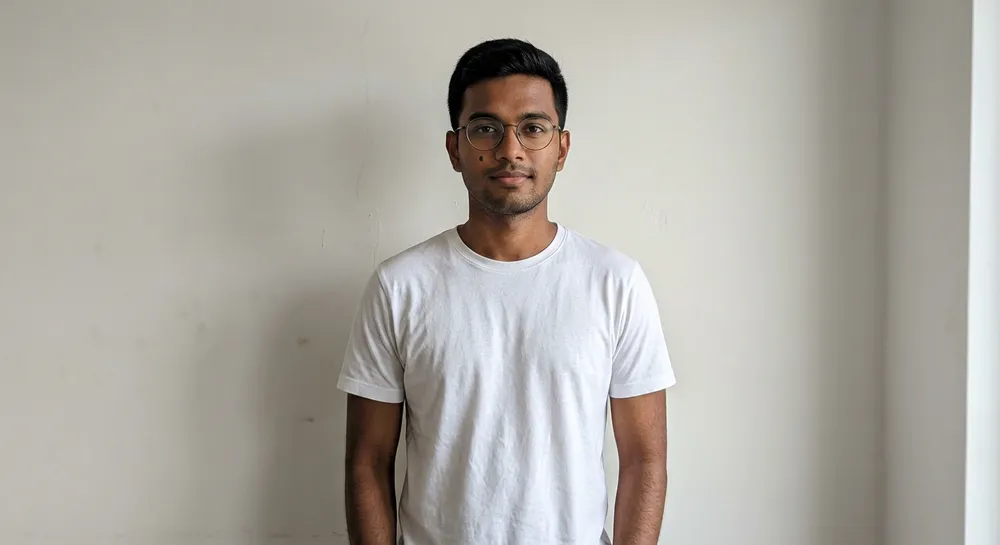
I generated a plain, flat-lit photo of a young man in a white t-shirt, with thin round glasses and a neutral expression. That is the “before” shot, a typical living-room selfie.
Prompt 1: the lazy one
I typed exactly this:
Edit this photo: make it look like a Mysuru Dasara festival photo, cinematic and beautiful.
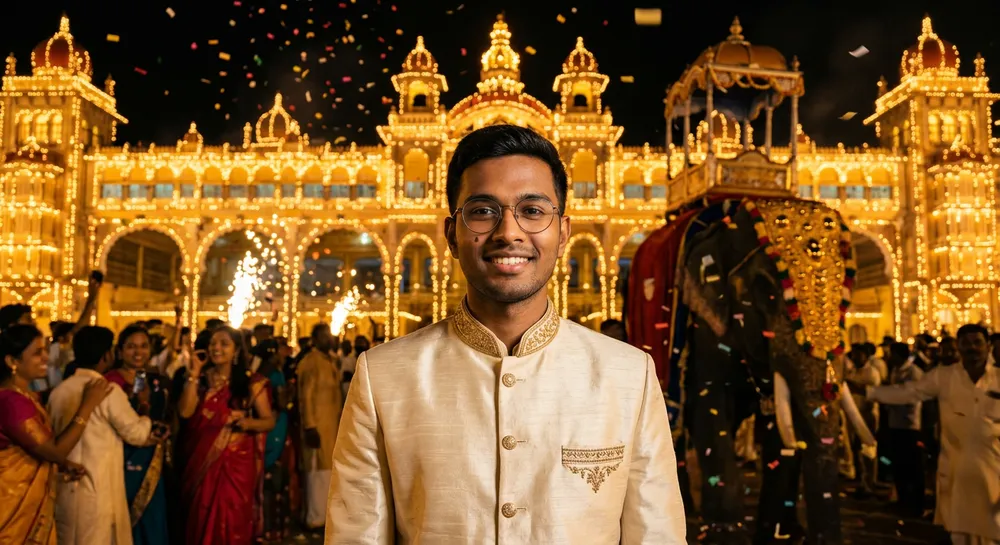
It is a lovely image, honestly. But look at the person. The neutral expression became a wide smile, the framing changed, and a whole crowd and an elephant appeared. If this were a photo of your mother, she would say “that’s not me”. The model did what I asked: it made a cinematic scene. I just never told it what to protect.
Prompt 2: keep first, then one change
Here is the version that worked:
Keep the face, hair, glasses, expression and pose exactly as in this photo. Change only the background to the lit-up Mysuru Palace at dusk, and change the white t-shirt to a cream silk kurta with a thin maroon border. Keep the crop and framing the same. Do not add text or accessories.
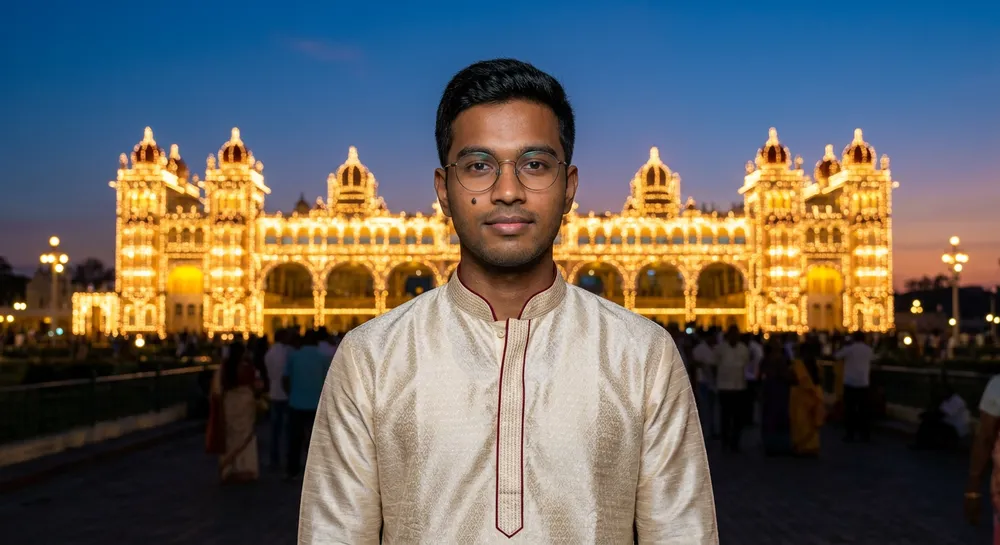
Same glasses, same neutral expression, same pose and crop. Only the background and the clothes moved. It is calmer than the lazy result, and that is the point: an edit that is still recognisably you.
The prompt formula to keep face same in Gemini
Write your prompt in this order every time:
- Keep line first. Name what must not change: face, hair, glasses, expression, pose, skin tone.
- One change. Background, or outfit, or lighting. Two at most, and say exactly which.
- Frame lock. “Keep the crop and framing the same.”
- Do-not line. “Do not add text, accessories or extra people.”
Copy-paste template:
Keep the face, hair, [glasses/beard/bindi], expression and pose exactly as in this photo. Change only [one thing] to [specific description]. Keep the crop and framing the same. Do not add text, accessories or extra people.
Settings and habits that help
- Start a new chat per photo. Earlier instructions leak into later ones.
- Upload the sharpest source you have. A blurry or dark selfie gives the model little to hold on to.
- Add the original again. If the face drifts after a few edits, go back to the first upload and apply all changes in one combined prompt instead of editing the edited version.
- Say “keep the skin texture” if the result looks too smooth.
- Zoom in before you save. Check eyes, hairline and hands at full size.
If you are building festival edits, these work well with our Rajyotsava prompts and the Deepavali prompt set. For the basics of structuring any prompt, start with how to write AI image prompts.
When the face still drifts: a quick repair routine
Even with a good prompt, one result in five or so will still feel slightly off. I do not regenerate blindly. I follow this small routine, and it usually saves the image in one or two tries.
- Compare at the same size. Put the original and the edit side by side on your phone and look at three spots: the eyes, the smile line and the hairline. Those three give the drift away first.
- Name the exact problem. Do not say “fix the face”. Say “the expression changed from neutral to smiling, restore the neutral expression from the original photo”.
- Re-attach the original. Upload the first photo again in the same message so the model has the anchor right next to your correction.
- Drop one change. If the outfit and the background both went wrong, redo only the background first, then the outfit in a separate chat.
- Stop after three tries. If the third attempt is still off, start a fresh chat with a shorter prompt. Long threads carry old mistakes.
A small habit that helps with festival photos in particular: keep the lighting change gentle. Asking for dusk light on the palace is fine, but asking for dramatic fireworks, flying petals and a crowd all at once pulls attention, and the face is the first thing to suffer. Add the extras in a second pass on the approved image.
Also think about who the photo is for. A profile picture needs the most faithful face. A fun Instagram story can tolerate more change. Decide that before you write the prompt, and your wording will naturally get stricter or looser.
Common mistakes
- “Make me look better.” This invites a new face. Name the change instead.
- Stacking five edits in one line. Do outfit and background together at most, and fix the rest in a second step.
- Editing the edit. Each round copies the last round’s small mistakes. Return to the original.
- Using a photo of someone without asking. Edit your own photos or those of people who agreed.
- Expecting perfection. Google’s own documentation says likeness is not always accurate, so always compare with the original before posting.
FAQ
Why does Gemini change my face when I only ask for a new background?
Usually because the prompt did not say to keep the face. Add a keep line at the start and ask for the background only.
Does it help to upload more than one reference photo?
Often yes, if you have a second clear photo from a similar angle. Tell Gemini what each image is for, for example “image 1 is the face to keep”.
Should I keep editing in the same chat?
For one or two edits, yes. If the face starts drifting, open a new chat and upload the original again.
Is the result safe to post?
Check it against the original at full size first, and only post edits of yourself or people who are fine with it.
Wrap-up
If you want to keep face same in Gemini, remember this one thing. Next time it gives you a stranger’s face, do not retry the same prompt five times. Rewrite it: keep line first, one change, frame lock. Try it on one of your own selfies tonight and compare it with the original side by side.