I make a lot of Rajyotsava and festival cards in Kannada, and the question I get most from other creators is always the same: why does Kannada text on AI images come out broken? One card looks perfect, the next one has letters that look like Kannada but read as nothing.
So I ran a small test with the same greeting (“Kannada Rajyotsava Shubhashayagalu”, written in Kannada script) two different ways. Below is what happened, why it happens, and the method I now use for every card that has to go to family WhatsApp groups without embarrassing spelling mistakes.
Why Kannada text on AI images goes wrong
Kannada is not written letter by letter. A word like Rajyotsava has stacked conjuncts (the ottakshara), vowel signs that sit before, above and after a consonant, and half forms that only appear in certain combinations. A font program has to join all of that correctly. An image generator does not “type” the word. It paints shapes that look like the script it has seen, so a small error in one conjunct changes the meaning, and you cannot see it unless you read Kannada well.
Names are the worst case. A short, common greeting has a good chance of coming out right. A bride’s name, a long caption or a line with numbers and English mixed together often does not. I cannot promise any tool gets it right every time, and neither can anyone else.
My test: asking the AI to write the Kannada
I used this prompt in an image generator, with the greeting typed in Kannada script inside the prompt (paste your own Kannada sentence where it says KANNADA SENTENCE):
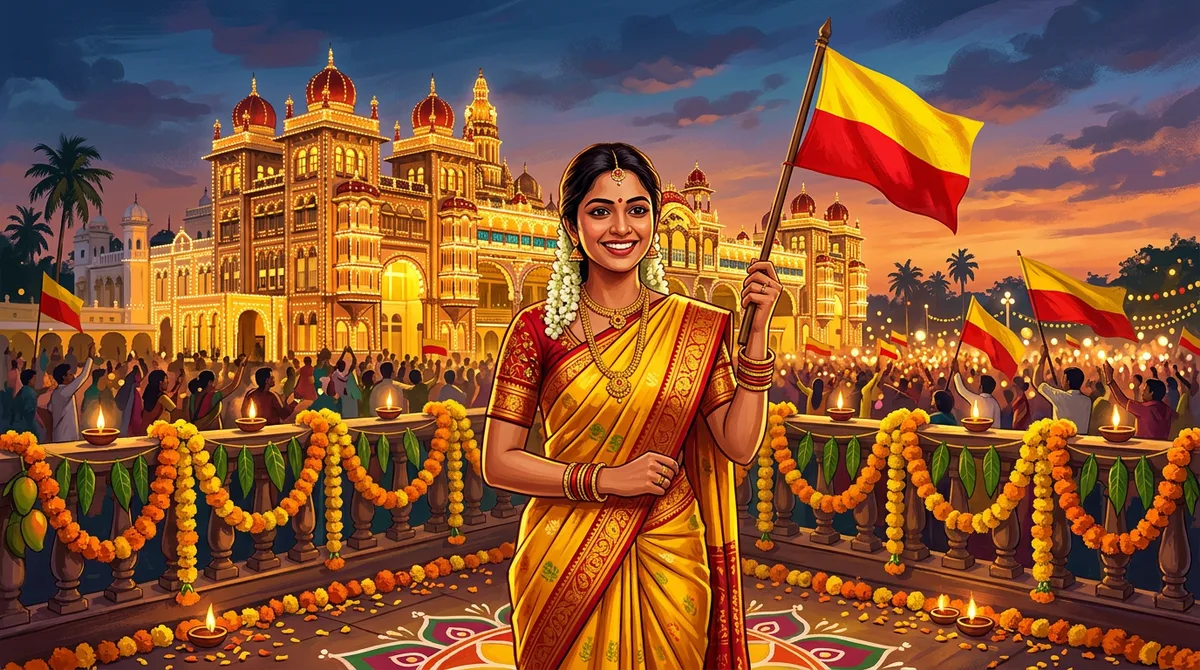
A festive greeting poster for Karnataka Rajyotsava with the Kannada sentence "KANNADA SENTENCE" written in large Kannada script in the centre, red and yellow flag colours, jasmine garlands, square composition
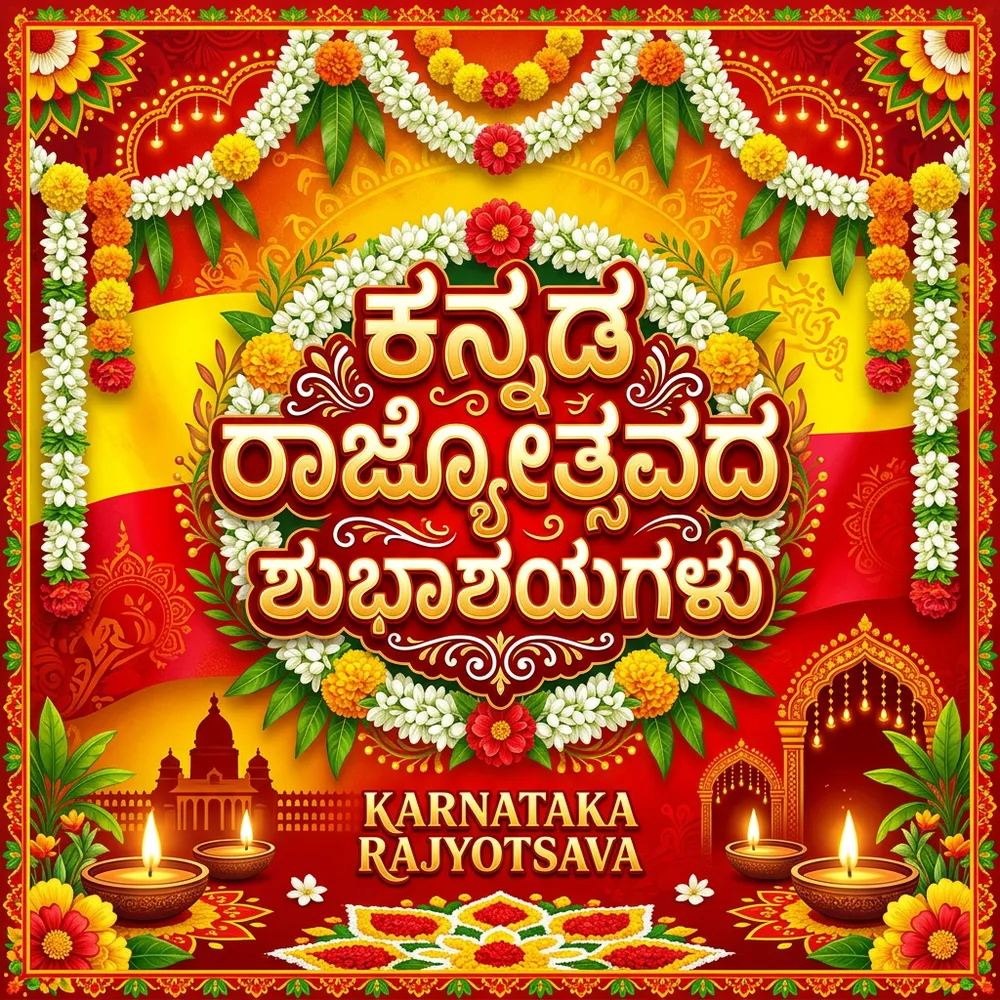
Honestly, the result was better than I expected. The main line looked readable on my first run. But two things went wrong anyway. It added an English line, “KARNATAKA RAJYOTSAVA”, that I never asked for, and the lettering is decorative, so a single wrong conjunct would be easy to miss. One lucky result is not a method. If you run it ten times for ten different sentences, you will see failures.
The method I trust: no text in the AI image, text added after
The safe way is to split the job in two. The AI makes the background only. You add the Kannada with a real font, so the shaping is done by the font and not guessed by the model.
Step 1: generate a background with a clean empty area
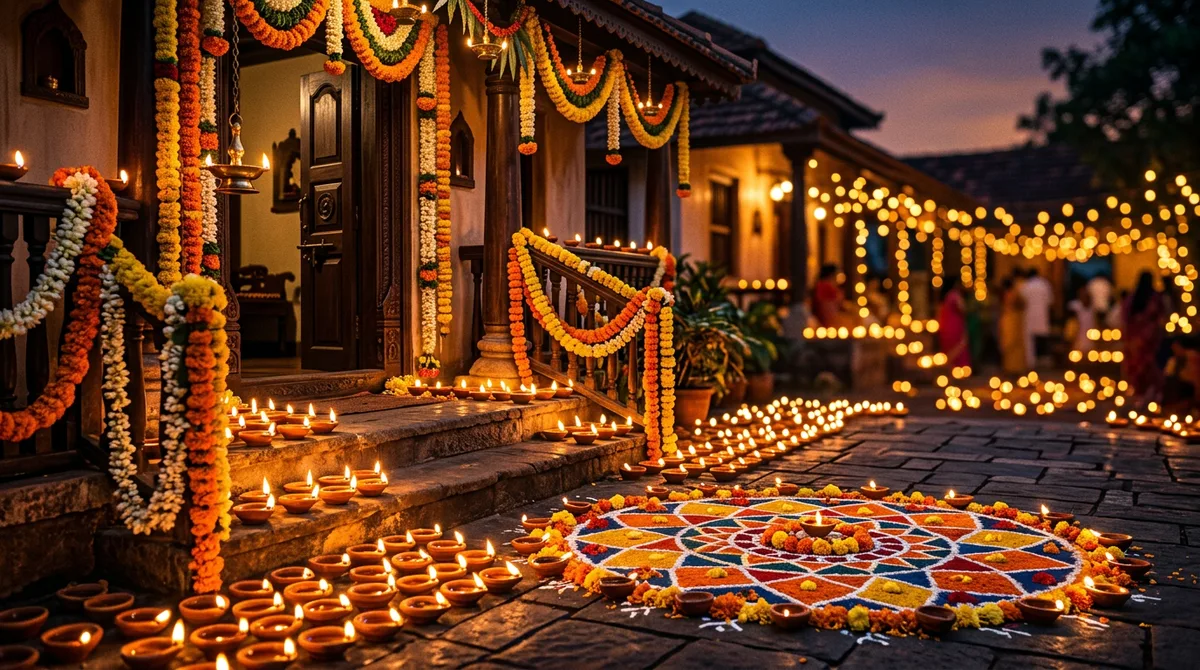
Festive Karnataka Rajyotsava greeting card background, vertical 4:5, deep red and golden yellow gradient, jasmine and marigold garland framing the top and bottom edges, soft glowing diyas, large empty clean flat red-yellow area in the centre for text. Absolutely no text, no letters, no logos, no watermark.
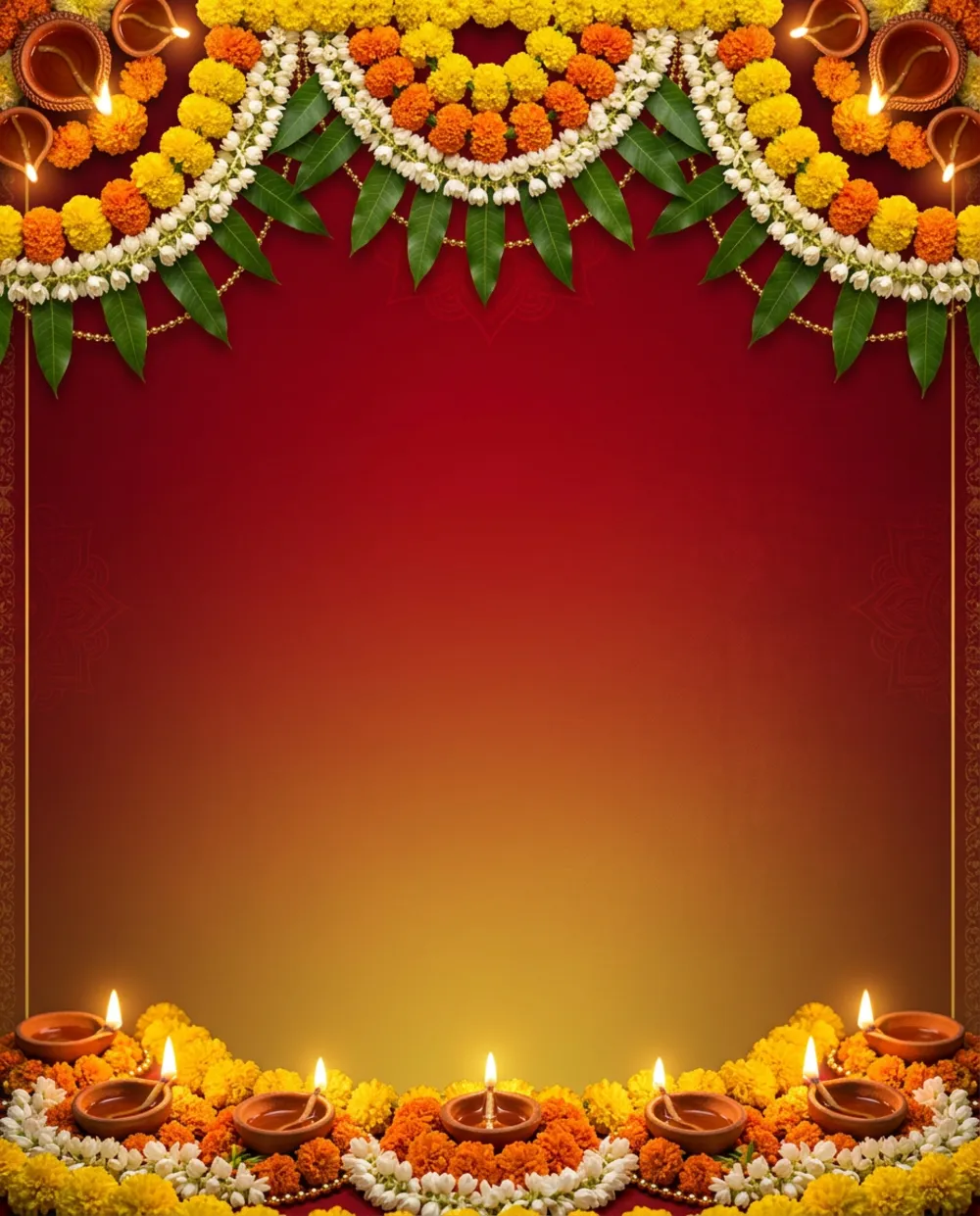
The phrase that matters is “large empty clean flat area in the centre for text”. Without it, the model fills the middle with ornaments and your text will fight with them. The last sentence also stops it from inventing fake letters.
Step 2: add the Kannada in an app with a real Kannada font
Any editor works as long as it has a Kannada font. For my card I used the Noto Sans Kannada Bold font, with a thin dark red outline so the yellow text stays readable on the gradient. In Canva, the font list has a section called “Fonts in your language”, and Canva’s own help page says a box symbol on your text means the font does not support your language setting. If you see boxes, pick a font from that section.
Typing tips that save time:
- Type or paste the text from your phone’s Kannada keyboard or Google voice typing, never from a screenshot.
- Break long lines yourself. Two short lines at a large size look better than one tiny line.
- Keep the date and the greeting at different sizes, so the eye knows which to read first.
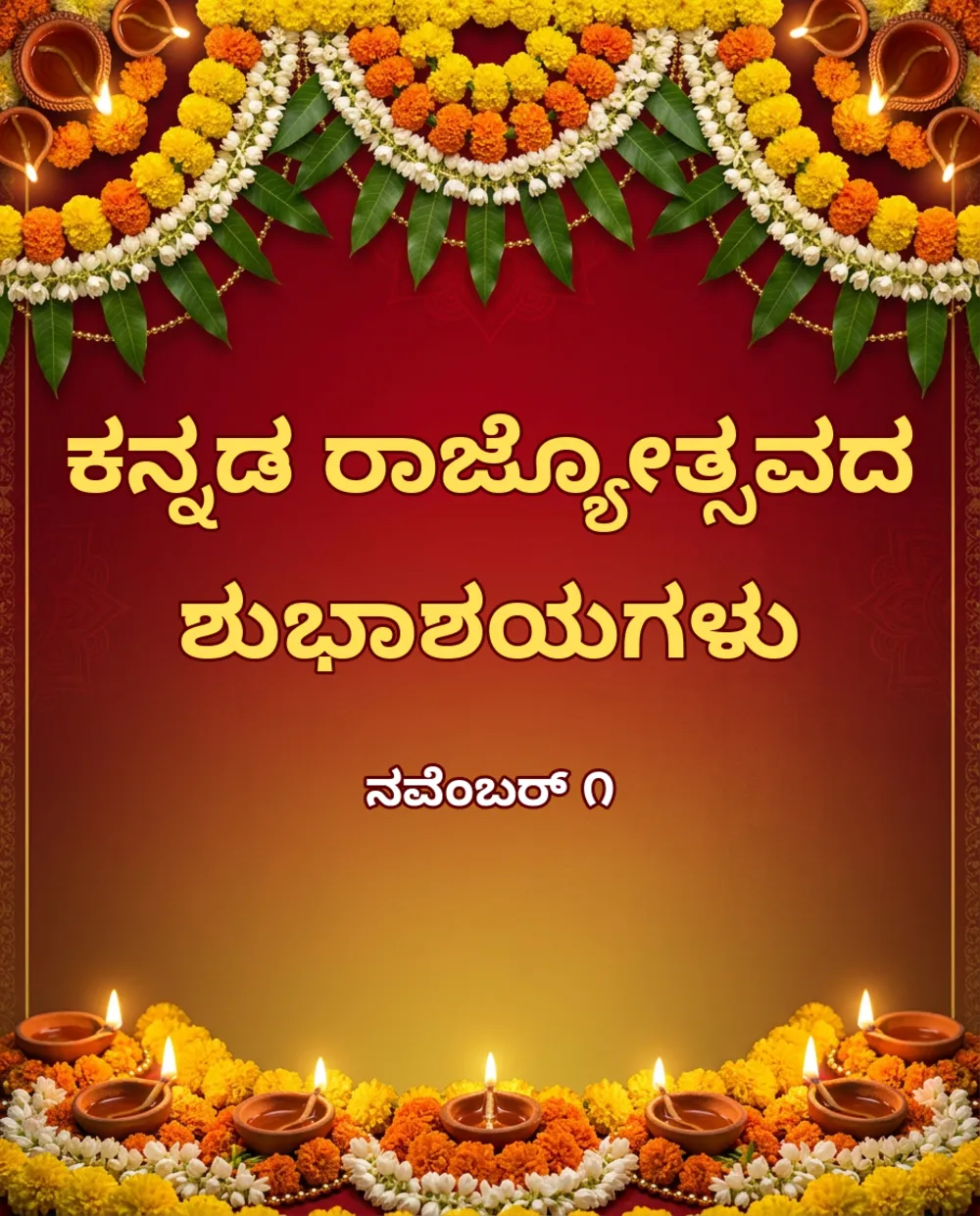
This is the same greeting from the first test, now set in a real font. Every conjunct is correct, because the font program did the joining, and I can read it letter by letter before posting.
Which method should you pick?
- Short, common greeting for a casual status: asking the AI directly can work, but read every letter before you share it.
- Names, invitations, shop banners, anything with a phone number: always add the text yourself.
- Anything printed: add the text yourself and proofread with a Kannada-speaking friend.
If you want the background in this style, my Rajyotsava AI photo prompts and Deepavali prompts give you the festival wording. And if your prompts are not coming out right in general, start with the formula in how to write AI image prompts.
The same fix works for video captions
The problem is not only for posters. If you add Kannada captions to a Reel, the same rule applies: the app must use a font that covers Kannada script. When a player or font cannot shape Kannada, the marks that should sit above and below a letter get drawn as separate full letters in a row, and the line looks broken. Switch the caption font and check one dense line (something with the conjuncts ksha or stra) at full screen before you export the whole video.
If your auto captions do not appear at all, that is a different problem, and I covered it in CapCut auto captions not working.
My own rule is simple. If a mistake in the text would embarrass me in front of family, I do not let an AI image model write it. The model gives me the mood, the colours and the garlands. The font gives me the spelling.
Common mistakes with Kannada text on AI images
- Trusting the first output. The text looks right at thumbnail size. Zoom in to 100% and read each conjunct.
- Using a Telugu font. Kannada and Telugu look alike, but a Telugu font will not display Kannada text properly.
- Pasting from a PDF or old Nudi-encoded text. Older Nudi or Baraha-style encoded text can turn into boxes or wrong letters in modern apps. Use Unicode Kannada.
- Tiny text on a busy background. Kannada has tall marks above and below the line, so it needs more size and spacing than English.
- No outline or shadow. Yellow on yellow vanishes on a phone in sunlight. Add a dark outline.
Quick checklist before you post
Read the text out loud once. Zoom to 100%. Check the date. Save a copy without text so you can reuse the background for the next festival. That last habit alone saves me about ten minutes per card.
FAQ
Why does Kannada text on AI images show wrong letters?
The model draws the look of the script instead of joining characters with a font, so conjuncts and vowel signs can come out wrong, especially in long lines and names.
Which font should I use for Kannada text?
Choose any Unicode font that covers Kannada. I used Noto Sans Kannada, a free open-source font. In Canva, look under “Fonts in your language”.
Why do I see boxes instead of Kannada letters?
The font you picked does not support Kannada, or the text uses an old encoding. Switch to a Kannada Unicode font and retype the text.
Can I use the example card for my own post?
Yes, the background is AI-generated for this article. Generate your own with the prompt above if you want a different look.