You write a careful prompt, Gemini starts drawing, and then a notice says you have reached your limit. It always happens right when the third version finally looks good. The Gemini image generation limit confuses almost everyone I know, partly because the old “20 images a day” numbers still float around the internet and are no longer how it works.
This post explains what Google actually says today, what eats your allowance fastest, and the prompt habit I now use to get a usable image in one or two tries instead of eight. I generated the two examples below with that habit, one attempt each.
How the Gemini image generation limit actually works
Google’s help page for Gemini Apps says usage limits are compute-based. That means the limit depends on how complex your prompt is, which models and features you use, and how long your chat is. Your allowance refreshes every 5 hours until you reach a weekly limit. Google also says the limits can change without notice.
So there is no fixed number of images to count on. Two things follow from that:
- An image request costs more than a chat message. Google lists images, music and video as heavy requests, with video the heaviest.
- A very long chat costs more per message, because Gemini re-reads everything above it every time you reply.
As of the help page I checked today, image generation with Nano Banana 2 is available without a paid plan. “Redo images with Nano Banana Pro” needs Google AI Plus, Pro or Ultra. Paid plans raise the limit: 2x for Plus, 4x for Pro, and 5x or 20x of Pro for Ultra, depending on the subscription. You can read the full table on the official Gemini Apps limits page.
What burns your usage fastest
After a few weeks of watching my own sessions, these are the habits that drain the allowance the most:
- Rerolling the same vague prompt. “Make it better” five times costs five images and fixes nothing.
- Editing inside one endless chat. By the tenth edit, every request carries the whole history with it.
- Uploading a photo and changing everything at once. Face, clothes, background and light in one message usually needs a second pass.
- Asking for four or five variations before the first one is right.
None of these is a mistake in a technical sense. They are just expensive ways to find out what you wanted in the first place.
A one-shot prompt habit that saves images
Before I press send, I write the prompt in six short parts, the same way I do in my AI image prompt formula post. I fill every slot, so Gemini has nothing left to guess.
- Subject: who or what, in one phrase.
- Clothes or objects: the specific item, such as “cream linen kurta” or “Mysore silk saree with a gold border”.
- Place: a real, specific location, not “nice background”.
- Light and time of day: golden hour, misty morning, window light.
- Camera look: 35mm or 50mm lens look, shallow depth of field, natural skin texture.
- Frame and exclusions: vertical 4:5, “no text, no watermark”.
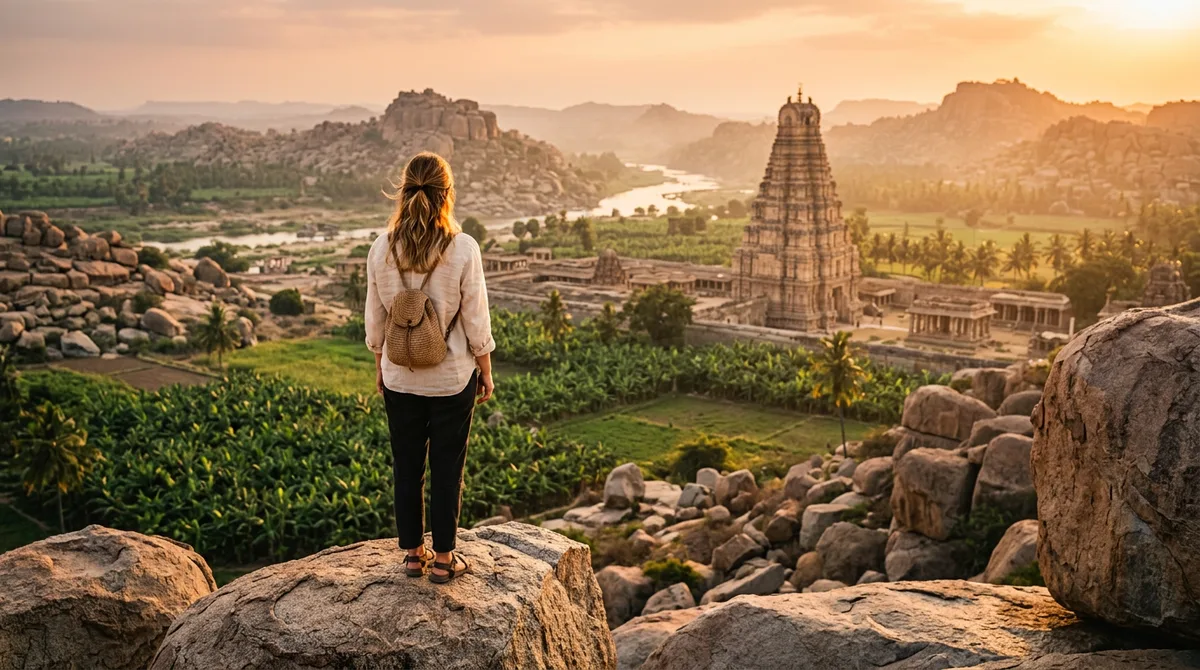
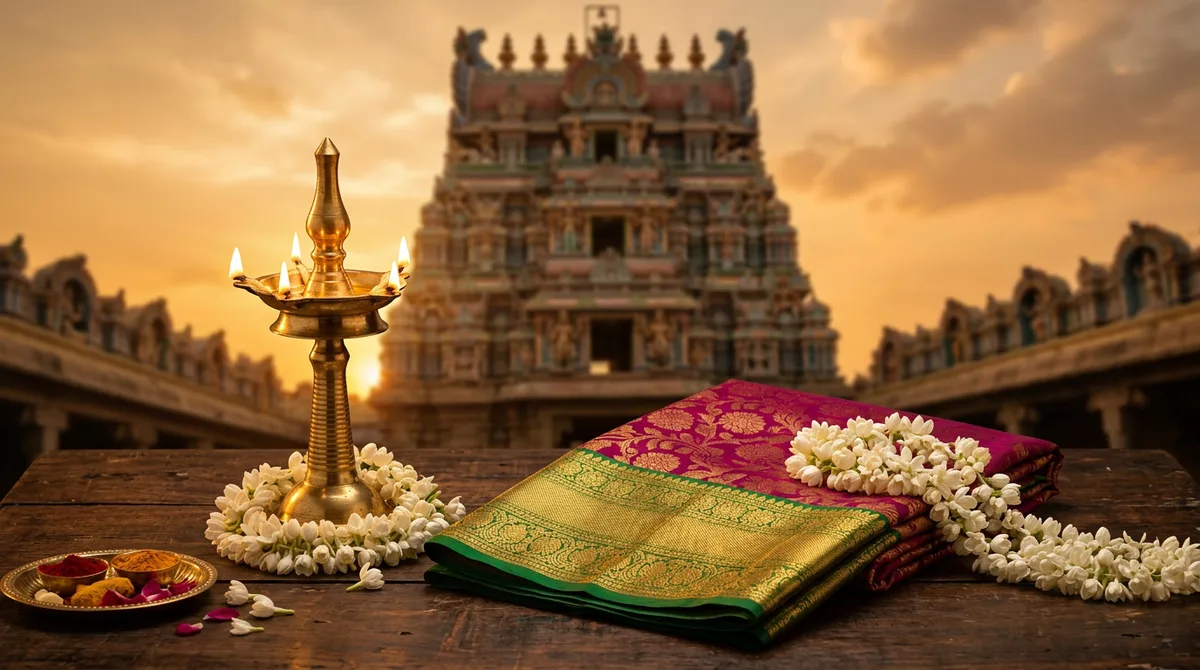
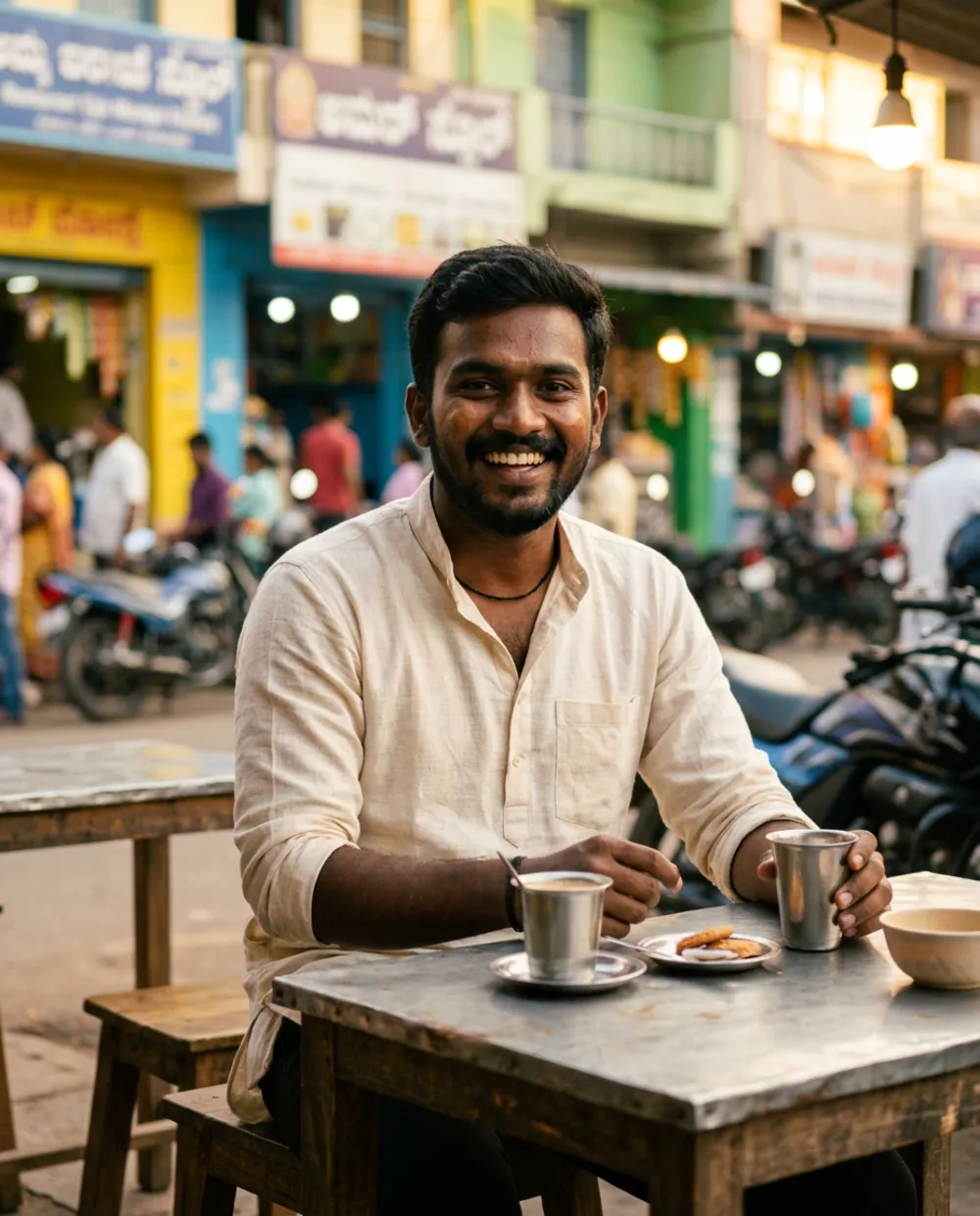
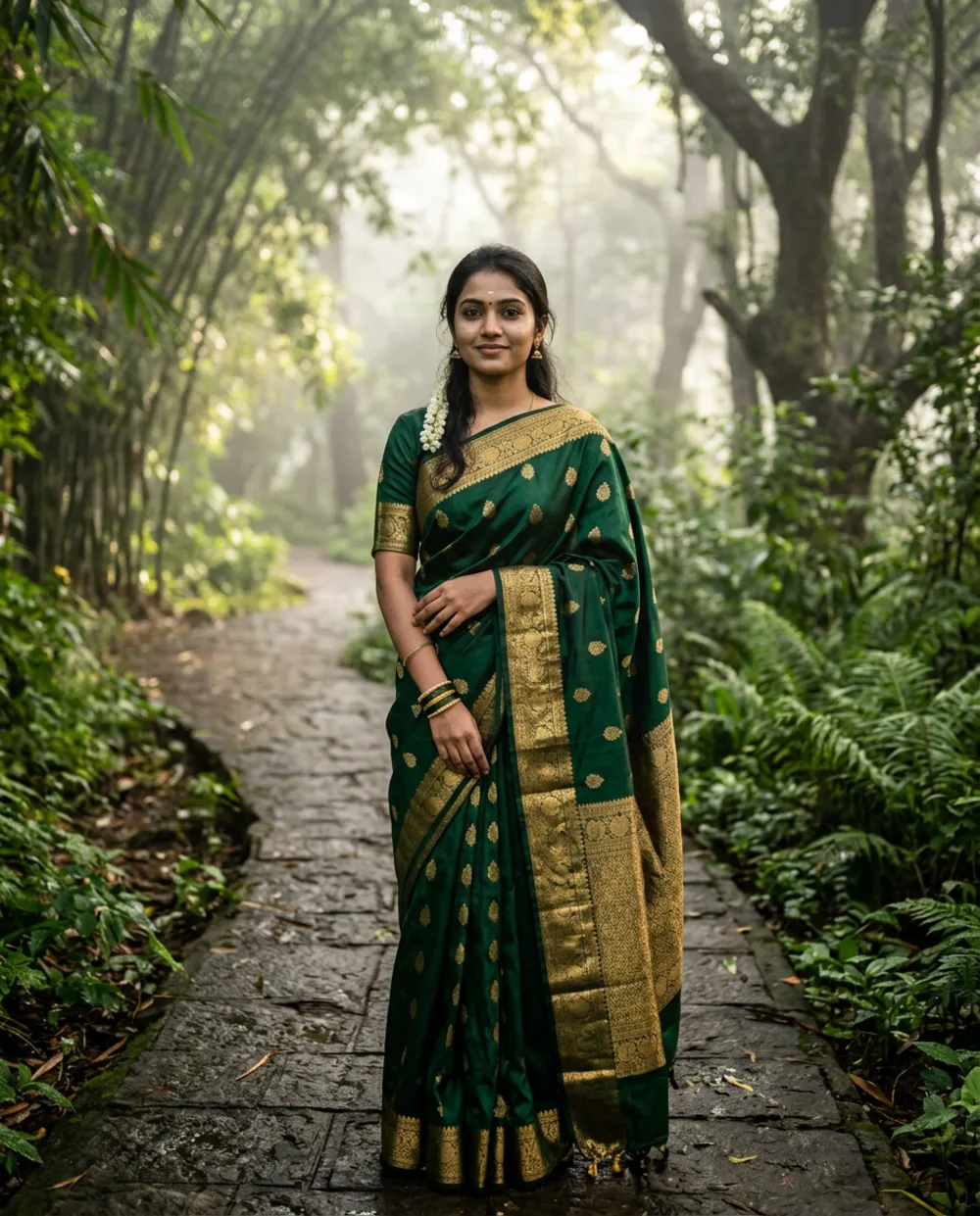
Here are the two prompts I ran. Both worked on the first attempt, so each cost me exactly one image.
Example 1: tea stall portrait
Photorealistic portrait of a smiling young South Indian man in a cream kurta sitting at a small roadside tea stall in Mysuru at golden hour, steam rising from a steel tumbler, blurred colourful shop fronts behind, 35mm lens look, natural skin, soft warm side light, shallow depth of field, vertical 4:5. No text, no watermark, no logos.
Example 2: misty park in a silk saree
Photorealistic portrait of a young South Indian woman in a deep green Mysore silk saree with gold border standing on a stone path in Cubbon Park in soft morning mist, dappled sunlight, 50mm lens look, natural skin texture, calm expression, vertical 4:5. No text, no watermark, no logos.
If you want the same person to stay consistent across several images, read my guide on keeping the face the same in Gemini first. It saves a lot of failed retries.
What to do when the limit message appears
- Read the notice. Gemini tells you when your limit will refresh. That time is more reliable than any number you read in an article, including this one.
- Do not keep rerolling. If the request is blocked, further attempts only waste your time.
- Use the wait. Rewrite your next prompt into the six parts above, and plan the whole set of images you still need.
- Start a fresh chat when you come back. Google itself suggests this when you move to a new topic, because Gemini does not have to re-read a long history.
- Check the account. A work or school Google account follows different rules set by the admin, so a limit there is not the same as on a personal account.
Common mistakes that look like a limit problem
- Prompt asks for text only. If the request is ambiguous, Gemini may answer with words and no image. Say clearly “generate an image of…”.
- Age rules. Image tools have age requirements, so a young user’s account may not get them at all.
- Expecting Redo with Pro on a free account. That option is for paid plans, so its absence is not an error.
- Many photos in one request. Uploading a big stack of reference images and asking for a complex edit is heavy work. Use one or two references.
My simple routine
I plan images in batches. Before a festival shoot, I write all prompts in a notes app, run the strongest one first, and only then touch the others. If the first result is close, I make one specific change, such as “same image, warmer light”. I never type “again”.
Think of the Gemini image generation limit as a budget rather than a wall. A budget is easier to live with once you plan the spending.
Free account or paid plan: which one do you need?
I would not pay just because you hit the limit once. Ask yourself three questions first.
- Do you make images most days for clients or a page? A paid plan makes sense here, since the allowance is 2x to 4x higher than standard.
- Do you need Redo with Nano Banana Pro? Only paid plans list it.
- Do you mostly experiment on weekends? A free account with batch planning is usually enough.
Prices change by country, so check the plan page inside the Gemini app before you decide. I will not quote a rupee figure here, because I could not verify one for India today.
That alone changed how long my allowance lasts. It also made the images better, because a clear prompt beats a lucky reroll.
FAQ
How many images can I make in Gemini per day?
Google does not publish a fixed number. Its help page describes compute-based limits that refresh every 5 hours up to a weekly limit, and says they may change.
Is Nano Banana free in the Gemini app?
According to Google’s feature table, image generation with Nano Banana 2 is available without a Google AI plan, within usage limits.
Does a longer chat use more of my limit?
Yes. Google says ongoing conversations need more thinking power as the chat grows, so a new chat for a new topic is cheaper.
Will a paid plan remove the limit?
No. Plus, Pro and Ultra raise the limit and add features, but Google still describes limits for all plans.