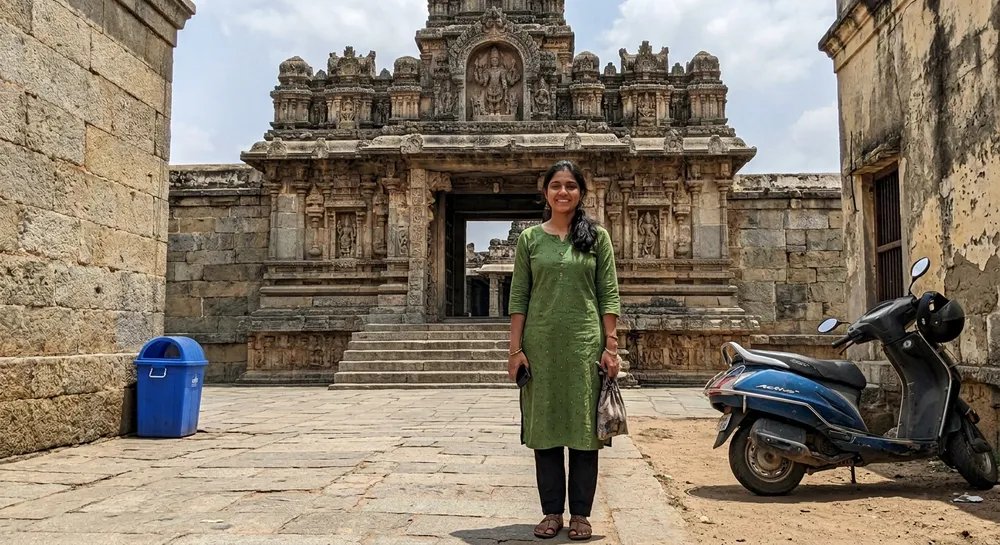
Last month I took a nice photo of a friend in front of an old temple gateway. The light was perfect. The background was not: a parked scooter on one side, a blue dustbin on the other and tourists walking through the frame. I used to fix this in Snapseed with the Healing tool and spend twenty minutes on it. Now one Gemini remove object from photo prompt does it in under a minute, if you word it right.
The wording matters more than people think. A vague “clean this photo” often changes the face or the colours too. Below is the exact prompt structure I use, a real before and after, and the mistakes that ruin the result.
A Gemini remove object from photo prompt has three parts
Google’s own tips say Nano Banana can change a single detail without disturbing the rest of the scene, and its prompt guide gives “remove the car in the background” as an example of a direct editing instruction. You can read it in the official Nano Banana editing tips. From my tests, a reliable prompt has three parts:
- What to remove. Name each object with its position and colour: “the blue scooter on the right”.
- What to fill with. Tell Gemini what should be there instead: “the matching stone floor and wall”.
- What must not change. List the things to keep: “the woman, her face, her clothes, the framing, the colours”.
Most people write only part one. Part three is the one that protects your face and keeps the photo looking like your photo. I explain the same idea for faces in my post on keeping the face the same in Gemini.
The prompt template I use
Upload your photo to Gemini, then paste this and replace the brackets:
Prompt: Edit this photo: remove [object 1 with position and colour] and [object 2 with position and colour]. Fill the area naturally with the matching [floor / wall / sky / grass]. Keep [the person, face, clothes, other objects] and the framing exactly identical. Same colours and lighting. Do not add anything new.
Notice the last sentence. Without it, Gemini sometimes adds a plant or a bench to “balance” the empty space.
Test 1: the cluttered temple photo
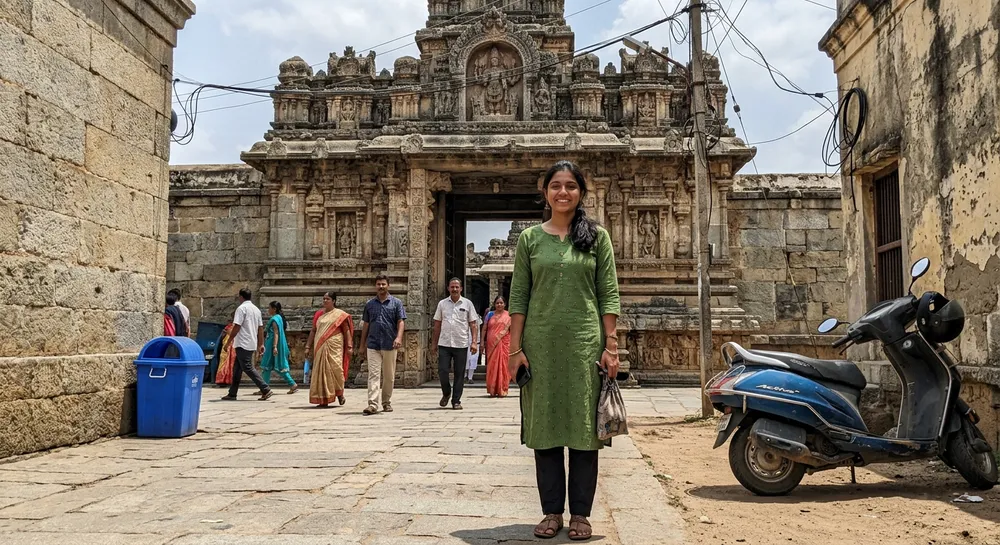
This is the starting photo. A woman in a green kurta, a temple gateway, a scooter, a dustbin, tourists and wires. A normal phone photo, nothing special.
Prompt used: Edit this photo: remove the blue scooter on the right and the blue dustbin on the left. Fill the area naturally with the matching stone floor, dirt ground and wall. Keep the woman, her face, clothes, the tourists, the temple, the wires and the framing exactly identical. Same colours and lighting.
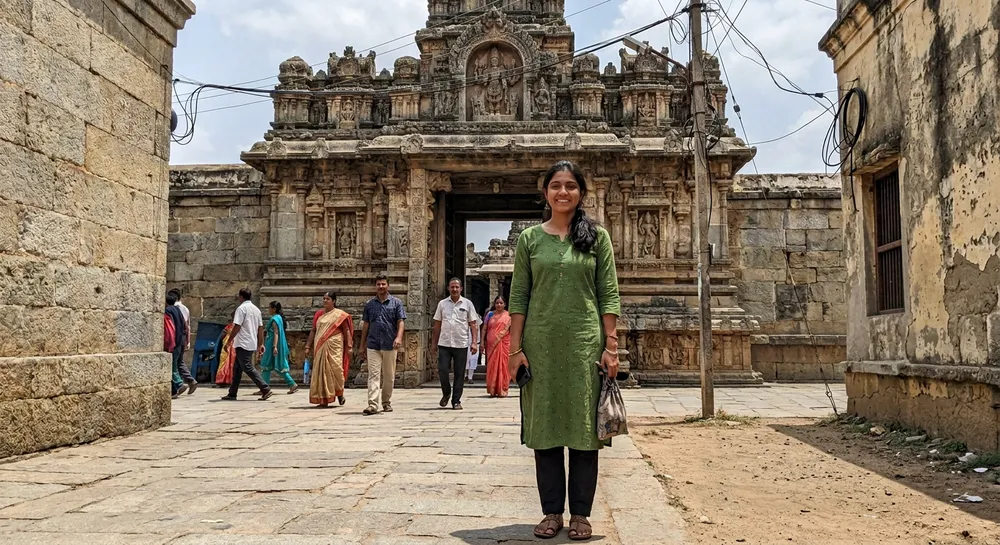
The scooter and dustbin are gone and the floor continues believably. The woman and the temple are unchanged. I am being honest about the flaws: on the right, the ground looks a little too clean compared with the old stone, and a tiny bit of blue is still visible far in the background. If you zoom in on your phone, always check those edges.
Test 2: wires and people in the background
Wires and strangers are the two things I get asked about most. I ran the same photo again with a different prompt, this time keeping the scooter and dustbin on purpose, to check that Gemini only touches what I name.
Prompt used: Edit this photo: remove all the overhead electric wires and the electric pole, and remove all the tourists walking behind the woman. Fill with clean sky and the temple stone steps and floor naturally. Keep the woman, her face, her green kurta, the temple carvings, the scooter, the dustbin and the framing exactly identical. Same colours and lighting.
The sky is clean and the people are gone. The scooter and dustbin stayed exactly where they were, which tells me the “keep” list works. Thin wires crossing a bright sky are actually easier than people, because the fill is simple.
Exact settings and steps on your phone
- Open the Gemini app and tap the plus icon to upload your original photo, not a WhatsApp copy. Compression makes the fill look blotchy.
- Paste the prompt. Remove one or two things per prompt, not six.
- If the first result is close but not right, reply in the same chat with a small fix, for example “the floor on the right is too clean, add some dust and cracks like the left side”.
- Check the result at full size, especially hands, edges of the person and anything that was near the removed object.
- Download and, if needed, finish in Snapseed. The Google help page for editing images in Gemini Apps lists the current options and age limits.
If you only want to change the whole background and not remove items, my background change prompt guide is the better tool.
Gemini or Snapseed Healing: which to pick
- Small spots, a pimple, a single wire: Snapseed Healing is faster and never changes anything else.
- Large objects, many people, a vehicle: Gemini wins, because it rebuilds the missing floor or wall for you.
- Anything important: a passport photo, a legal document or a product listing should not be edited with AI at all. Fill-ins are invented pixels.
Common mistakes that spoil the result
- Vague words. “Remove the distractions” leaves Gemini guessing. Name each object.
- No keep list. This is how faces and clothes end up slightly changed.
- Removing a person who overlaps your subject. If a stranger stands partly behind your friend, the edge often smears. Crop or reshoot instead.
- Too many edits at once. Do big objects first, then a second prompt for wires and small items.
- Posting without zooming in. Always look for repeated textures, melted shadows and missing reflections.
- Removing a person without consent from a group photo. It is your photo, but think about how the people in it would feel.
Final thoughts
After a few tries, the pattern becomes automatic: name it, say what fills the gap, list what stays. Save the template in your notes app and you will reuse it every time you travel. Start with one simple photo, like the scooter test above, before trying a crowded one.
FAQ
Is the Gemini remove object from photo prompt free to use?
Image editing is available in the Gemini app, but daily limits and the model you get depend on your account and plan. Check the Gemini help page, as the limits change.
Will Gemini change my face when removing objects?
It can, if you do not say otherwise. Add “keep the face, clothes and framing exactly identical” and compare the result with your original.
Can Gemini remove a watermark?
I would not use it for that. Removing someone else’s watermark can break their rights, and it is not what these prompts are meant for. Use it on your own photos.
Why does the filled area look blurry or fake?
Usually the source photo was low quality or the removed object was very large. Upload the original file, remove fewer things, and ask for a texture to match, such as “same stone texture as the left side”.