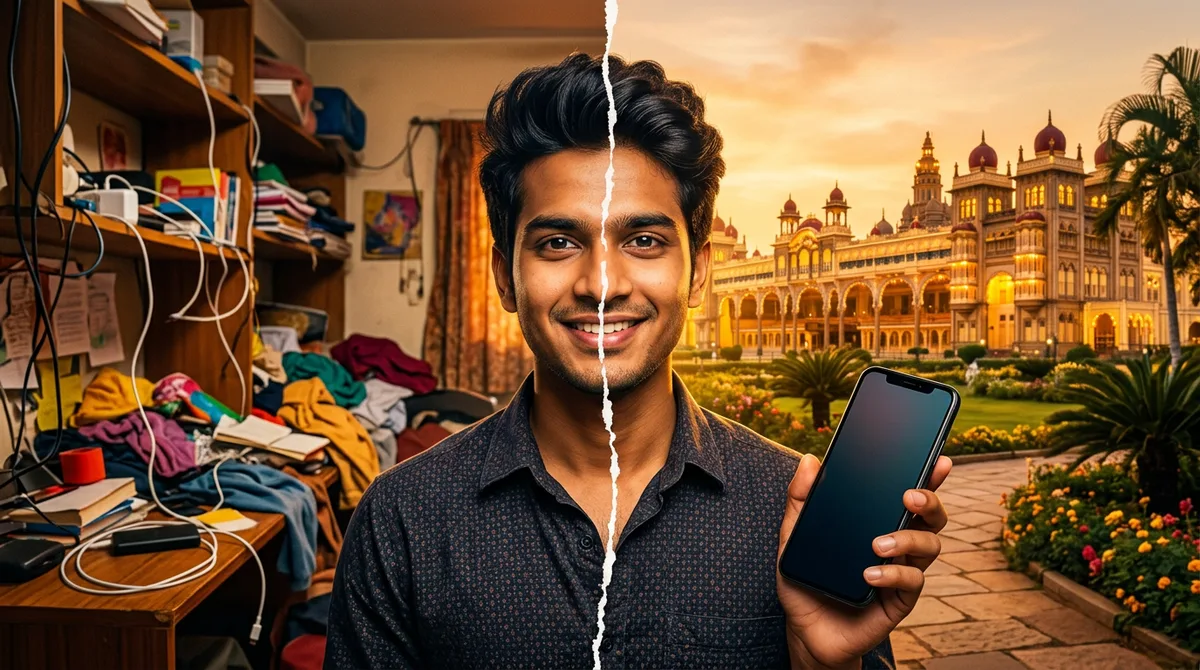
Changing a photo background sounds like the easiest edit in the world, until Gemini also changes your nose, your shirt colour or the whole mood of the picture. I ran into this with every second photo I tried. After a lot of retries I settled on a Gemini background change prompt structure that leaves the person alone and rebuilds only the scene behind them. Below are three prompts I actually ran: a Hampi sunset, a Bengaluru office portrait and a Mysuru Palace family photo.
Everything here works in the Gemini app and mostly the same in ChatGPT. Upload your own photo first, then paste the prompt.
Why a Gemini background change prompt goes wrong
When you write “change the background to a beach”, Gemini treats the whole picture as editable. It has no reason to protect your face. Three things usually go wrong:
- The face drifts. Skin gets smoother, eyes change shape. The model is regenerating, not masking.
- The light does not match. You stand in flat indoor light, but the new sky is a golden sunset. The photo looks pasted.
- Edges look cut out. Hair strands and dupatta borders get a hard white halo.
So the prompt has to do three jobs: lock the person, describe the new place, and tell Gemini how the light on the person should change. I explained the face-locking part in more detail in my post on keeping the face the same in Gemini.
The 4-part prompt structure I use
Here is the skeleton. Copy it and fill the brackets.
- Lock line: “Keep the person’s face, hair, clothes, pose and skin tone exactly as in the uploaded photo.”
- New scene: “Replace only the background with [place, time of day, two or three real objects].”
- Light match: “Relight the person with [warm sunset / soft window light] so it matches the new background.”
- Finish: “Clean natural edges around hair, realistic depth of field, no extra people, no text.”
The light match line is the one most people skip, and it makes the biggest difference. Google’s own guidance also says to describe scenes in full sentences instead of keyword lists, which you can read in their official Nano Banana tips.
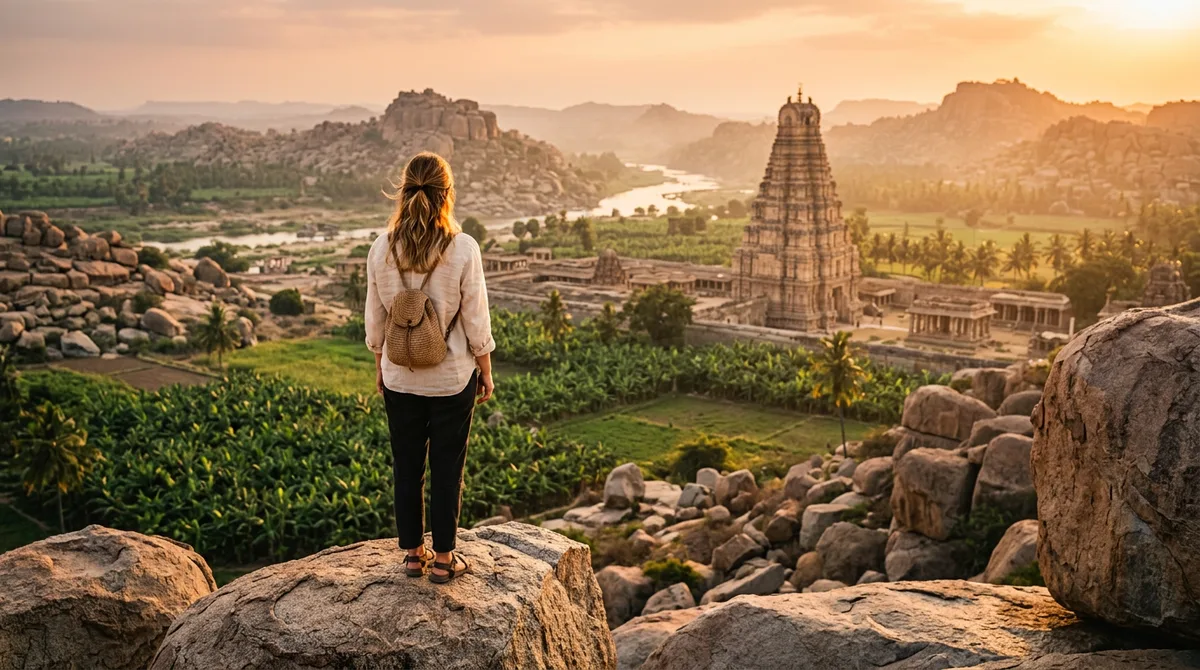
Prompt 1: Hampi sunset behind a saree portrait
I used a plain indoor photo of a woman in a green silk saree. The goal was to move her to the stone chariot area in Hampi at dusk.
Prompt: Keep the woman’s face, hair, green silk saree, pose and skin tone exactly as in the uploaded photo. Replace only the background with the stone chariot at Hampi at blue hour, with carved pillars on the right and a purple-orange sky. Relight her with soft warm rim light from the left so it matches the sunset. Natural edges around hair and pallu, shallow depth of field, no extra people, no text.
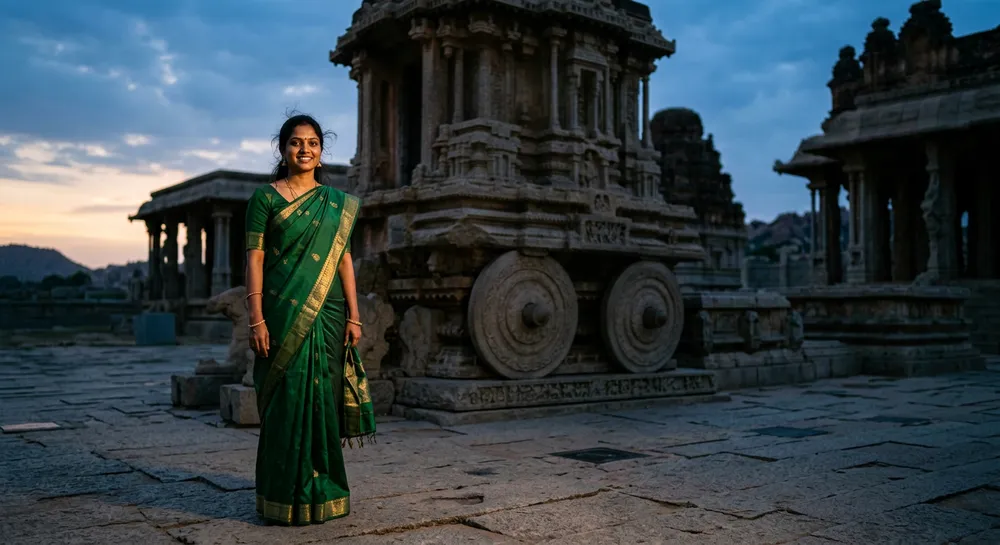
The saree border stayed intact, and the rim light on her shoulder is what sells it. Without the relight line, my first try looked like a sticker.
Prompt 2: a clean office background for a profile photo
This one is for LinkedIn, a resume or a visiting card. I started with a man in a white shirt standing against a cupboard.
Prompt: Keep his face, hair, white shirt and expression exactly the same. Replace only the background with a softly blurred modern co-working office in Bengaluru, with a large window on the left and a few green plants. Soft window light on his face, 85mm lens look, natural skin texture, clean edges, no text.

Notice that I asked for a blur. A sharp office behind a person screams fake. For more profile photo ideas, see my Gemini profile photo prompt post.
Prompt 3: Mysuru Palace for a family photo
Group photos are harder because Gemini has more faces to protect. I used a family of three standing in a hall at home.
Prompt: Keep all three people’s faces, heights, festive kurtas and positions exactly as in the uploaded photo. Replace only the background with the Mysuru Palace lawn at dusk, with the palace outline covered in warm yellow bulbs. Relight the family with warm golden light from the front, matching the bulbs. Natural edges, no extra people, no text.
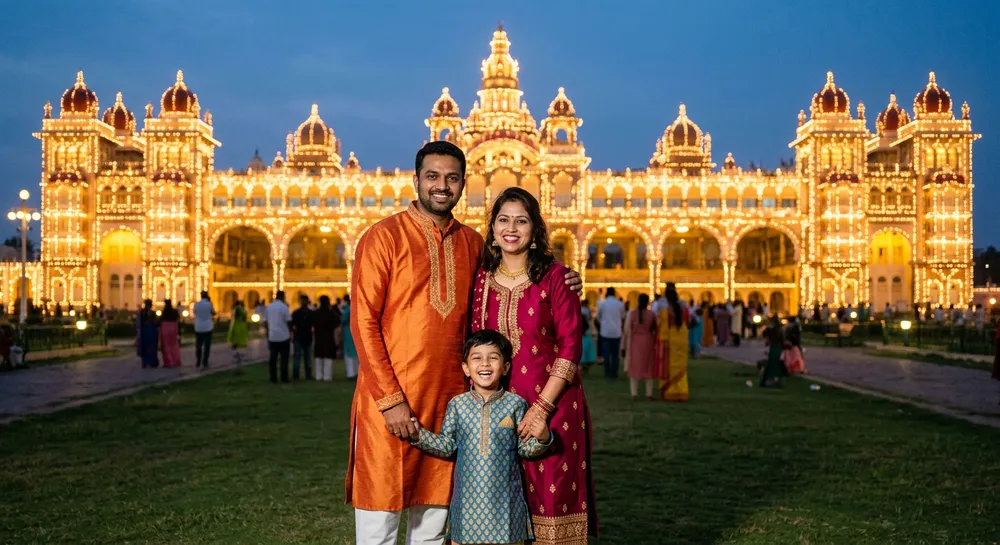
This is a nice option around Dasara or any festival card. I have a longer list of festive ideas in the Rajyotsava photo prompts post.
Prepare the photo before you upload
Ten seconds of prep saves five retries. Stand facing a window if you can, so the face is evenly lit. Keep a little space between you and the wall, because Gemini separates hair from the background much better when they do not touch. Avoid busy patterns behind you, like a curtain with big prints, since the model sometimes keeps pieces of them.
Also check the framing. If your feet or hands are cropped in the original, Gemini will invent them in a different way in the new scene. A waist-up or full-length photo with clear edges works best. I tested the same prompt on a dark, grainy night selfie and the result was clearly worse than on a daylight photo, so do not expect magic from a bad source.
One more habit: after Gemini gives you the edit, zoom in on the ears, fingers and the edge of the clothes. These are the places where small errors hide. If you spot one, ask for that single fix instead of regenerating everything.
Common mistakes with background change prompts
- Asking for too many things at once. Background plus outfit plus expression in one prompt usually breaks the face. Do one change per message.
- Using a low-resolution source. A blurry selfie gives blurry edges. Start with the original photo, not a WhatsApp-compressed copy.
- Picking a background with the wrong direction of light. If the sun in your photo comes from the right, say so, or choose a scene lit from the right.
- Not saying what to keep. If the lock line is missing, expect changes.
- Accepting the first result. Reply with “same photo, but remove the white halo around the hair” and it often fixes itself.
Quick fixes when the result looks fake
If the person looks pasted, reply: “Match the colour temperature of the person to the background.” If the face changed, start a new chat and upload the original again, because a long chat drifts. If the free image limit stops you mid-edit, check my note on the Gemini image generation limit.
FAQ
Can Gemini change the background without changing my face?
Mostly yes, if you add a lock line and ask to replace only the background. It is not perfect every time, so compare the face with your original before posting.
Is the Gemini background change prompt free?
You can try it in the free Gemini app, but image edits are limited per day and the limit can change. Check inside the app.
Why does the new background look pasted?
Usually the light does not match. Add a line telling Gemini to relight the person to match the scene.
Can I use the same prompt in ChatGPT?
Yes. The structure is the same, though the results and face accuracy differ a little.
My take
Keep one rule in mind: protect the person, describe the place, match the light. Try the Hampi prompt on one of your own photos today, and change only the place name to make it yours.