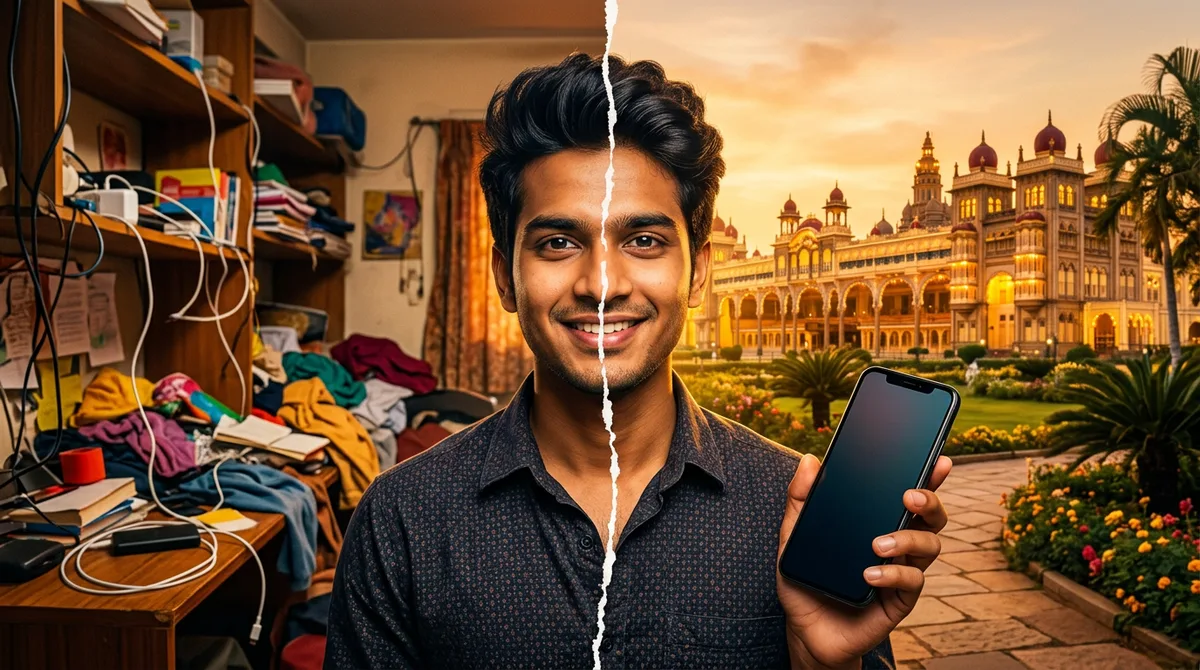
A friend of mine sells handmade soaps from her home in Mysuru. Her products are lovely, but her WhatsApp catalogue photos were dark, with a messy bedsheet in the background. She lost customers at the first glance. So I spent an afternoon testing a Gemini product photo prompt that turns an ordinary phone picture into a clean, catalogue-style shot without making the product look different from the real thing.
Below are three prompts I actually ran, for a soap bar, filter coffee and a silk saree, plus the rules that decide whether the result is honest or misleading.
What a good Gemini product photo prompt must do
Product photos are different from portraits. A customer will compare the picture with the parcel they receive. If Gemini quietly makes the soap bigger or the saree border richer, you get returns and bad reviews. So the prompt has to do four jobs:
- Protect the product. Shape, colour, size and any design must stay as in your photo.
- Choose a believable setting. One surface, one light direction, two or three props at most.
- Set the camera feel. A lens, a depth of field and a light type make the image feel photographed.
- Ban the extras. No text, no logo, no extra products, no hands.
Google’s own guidance recommends describing the scene in full sentences, with the subject, setting and lighting, rather than stacking keywords. Their official Nano Banana tips say the same. If you are new to this, my post on the AI image prompt formula explains the basic order.
Shoot the source photo properly first
Gemini can improve a photo, but it cannot rescue a bad one. Before you upload, spend one minute on this:
- Put the product next to a window, not under a ceiling light.
- Wipe the product and the surface. Dust shows up even more after editing.
- Shoot straight on or from slightly above, with the whole product inside the frame.
- Use the original camera file, not a WhatsApp-forwarded copy.
If the product has printed text, such as a brand name on a pack, expect Gemini to blur or alter it. Add the label yourself later in Canva instead of trusting AI with small letters.
Prompt 1: handmade soap on a wooden tray
This is the lifestyle style, good for Instagram. I started from a soap photo taken on a bedsheet.
Prompt: Keep the soap bar’s shape, size, colour and texture exactly as in the uploaded photo. Place it on a dark wooden tray with a few sandalwood chips and two jasmine flowers beside it. Soft window light from the left, shallow depth of field, premium catalogue look, natural shadows. No text, no logo, no extra soap bars.
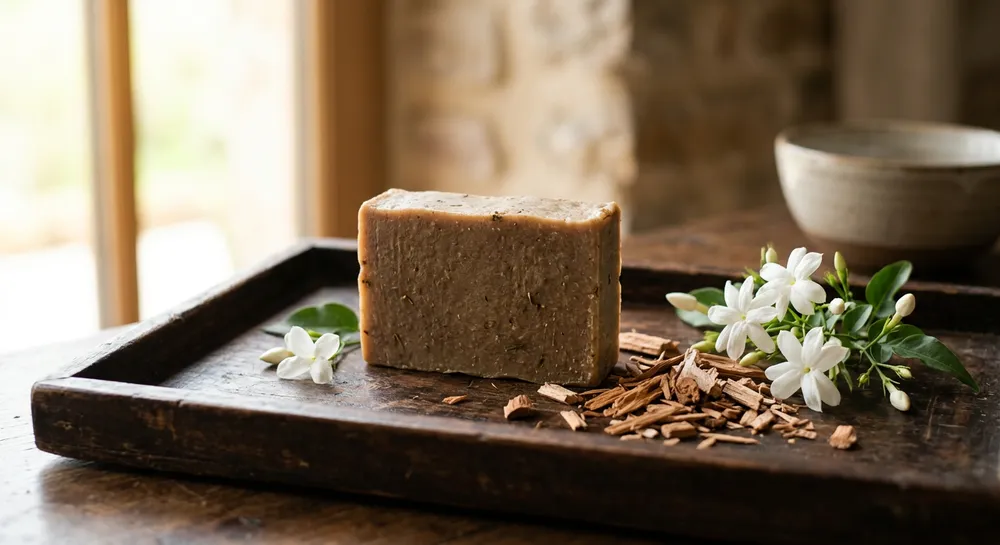
The props did the work here. Sandalwood chips tell the buyer what the soap is about before they read a word. Keep props related to the product, or the picture feels like decoration.
Prompt 2: filter coffee for a food brand
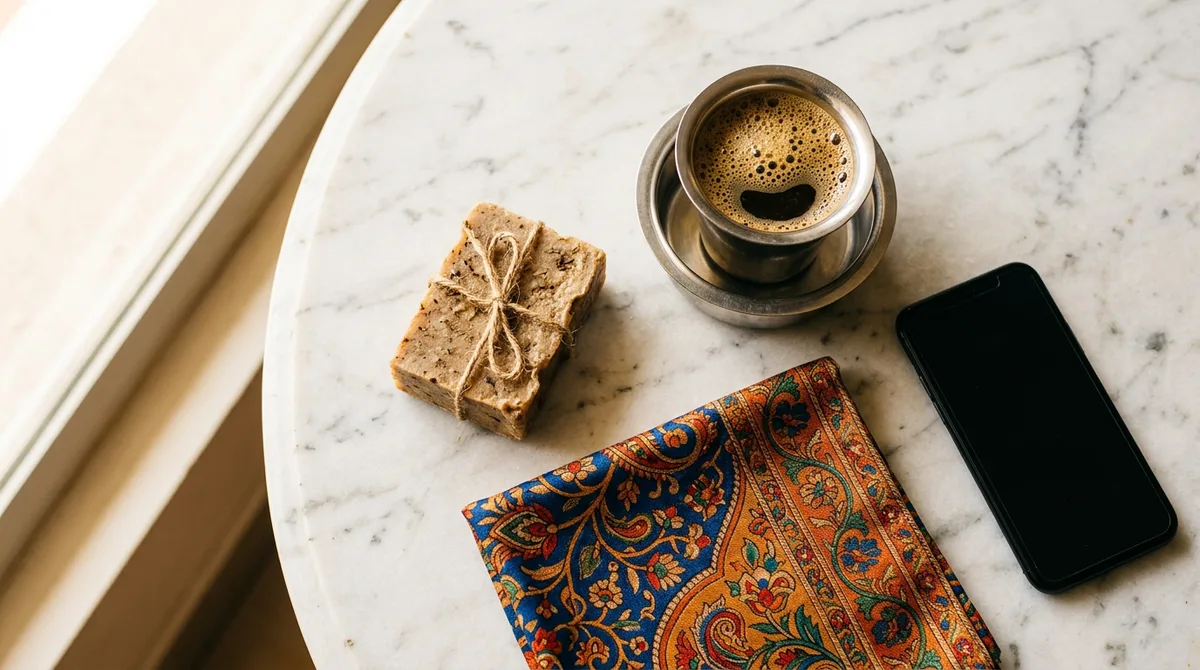
For food, steam and warm light sell more than anything. I started from a plain photo of a steel tumbler and dabara on a kitchen shelf.
Prompt: Keep the steel tumbler and dabara exactly as in the photo, same shape and shine. Put them on a rustic wooden counter in the morning, with a little steam rising from the coffee and a few coffee beans scattered nearby. Warm golden window light, shallow depth of field, 50mm lens look. No text, no people, no extra cups.

One honest warning: the froth and steam are invented. If you sell coffee powder, show the powder pack clearly somewhere else in your listing. I also keep the original photo in the same post so the buyer sees both.
Prompt 3: silk saree on a white background
Marketplaces like Amazon and Meesho prefer clean white backgrounds. This is the one I would use for a listing’s first image.
Prompt: Keep the saree’s colour, zari border and fabric texture exactly as in the uploaded photo. Show it neatly folded on a pure white seamless background with soft even light and a faint contact shadow. Sharp fabric detail, no wrinkles added, no model, no text, no logo.
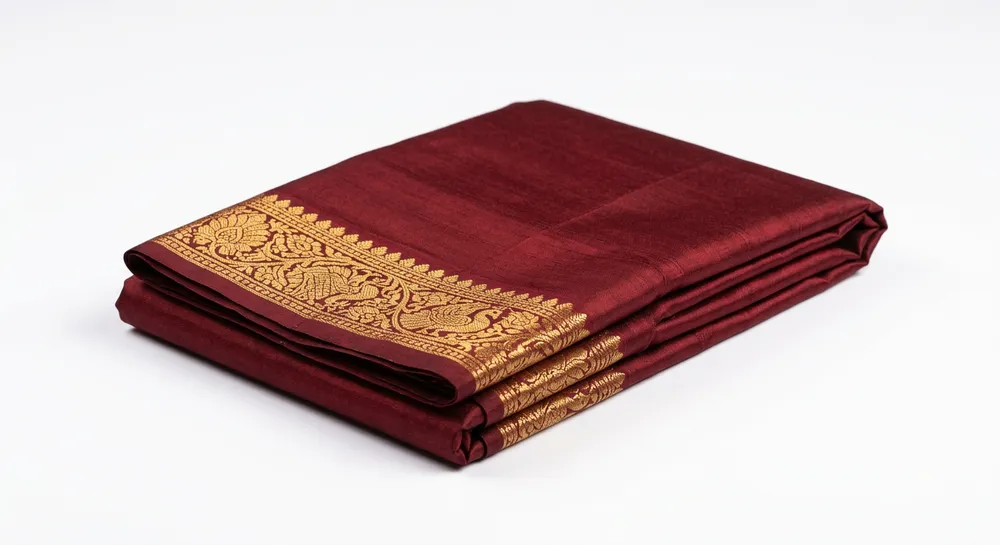
Colour is where this can go wrong. Maroon sometimes shifts toward red. Always hold the result next to your real saree in daylight before publishing. If the shade is off, reply: “Match the original colour exactly, do not saturate.”
Simple tweaks that fix most results
When the first output is almost right, change only one thing per reply. These small lines have worked best for me:
- “Reduce the glow, make the light more natural.”
- “Remove the shadow on the right side.”
- “Make the product fill more of the frame, keep the same background.”
- “Same image, but a plain light grey background.”
If the product shape itself changes, start a fresh chat with the original photo. Long chats drift, which I covered in my post on keeping things the same in Gemini. The background-only edit is explained in the Gemini background change prompt guide.
How I handle a whole catalogue in one sitting
If you have twenty products, do not write twenty new prompts. Save one master prompt in your notes app and swap only the product name and the props. I keep three versions: a lifestyle one for Instagram, a white-background one for marketplaces and a dark moody one for festive offers. Then I shoot all products in one session, near the same window, so the light stays consistent across the catalogue.
Name the files clearly before uploading, such as soap-sandal-original.jpg, so you never mix up the original and the edit. A consistent look across your page does more for trust than one perfect picture.
Common mistakes with product photos
- Making the product look better than it is. It boosts clicks, then returns. Edit light and background, never the product.
- Too many props. The eye should land on the product first.
- Mixing light directions. A window on the left and a shadow falling left looks wrong.
- Trusting AI with labels. Small text and logos come out garbled.
- Using only AI pictures. Add at least one real, unedited photo, especially for food and clothing.
- Hitting the free limit mid-batch. Plan your shots; see my note on the Gemini image generation limit.
FAQ
Can Gemini make product photos for my online shop?
Yes, for backgrounds, light and styling, if you start from your own photo. Check each marketplace’s image rules, since some require unedited main images.
Will the product look different from the real one?
It can. That is why the prompt starts with a line to keep shape, size and colour, and why you should compare the result with the real item.
Is a gemini product photo prompt free to use?
You can try it in the free Gemini app, but daily image limits apply and can change. Check inside the app.
Can I use the same prompt in ChatGPT?
The structure works there too, though the results differ a little.
My take
Keep the product honest, make the setting simple, and match the light. Take one photo of your best-selling item today and run the soap prompt with your own props. If you like the result, save the prompt in your notes and reuse it for every new product.