A friend asked me last week to turn his street photo into a pencil sketch for his father’s birthday card. I have seen artists charge a few hundred rupees for that. I tried it in Gemini instead, and the first result turned him into a stranger. The second one was lovely. The only difference was the prompt, so here is the exact Gemini photo to pencil sketch prompt I now use, with real before and after images.
Sketch and painting prompts look easy, but they quietly break faces, clothes and backgrounds. Below you get a template, two tested styles from the same photo, the settings that matter and the mistakes to avoid.
Why most Gemini photo to pencil sketch prompt attempts fail
People type “make this a sketch” and hope. Gemini then picks its own style, often a thick cartoon outline, and redraws the face from scratch. Google’s help page for image editing says Gemini can edit an uploaded photo, and its prompt tips tell you to describe the style you want, with examples like “charcoal drawing” and “watercolor painting”. You can read it on the official Gemini image help page. That tells us two things: style words count, and you must say what stays the same.
I split every prompt into four parts:
- The action. “Turn this photo into…”
- The exact medium. Graphite pencil, cream paper, soft hatching. Not just “sketch”.
- The keep list. Face, expression, clothes, pose, hairstyle.
- The ban list. No colour, no text, no extra objects.
The pencil sketch prompt template
Upload a clear photo first. Then paste this and edit the brackets:
Prompt: Turn this photo into a realistic graphite pencil sketch on cream paper. Keep the same face, expression, [clothes] and pose exactly. Soft shading, visible hatching, light smudges, plain paper background. No text, no colour.
That last line is important. Without “no colour”, Gemini often leaves a little warm tint on the skin, which makes the sketch look like a filtered photo.
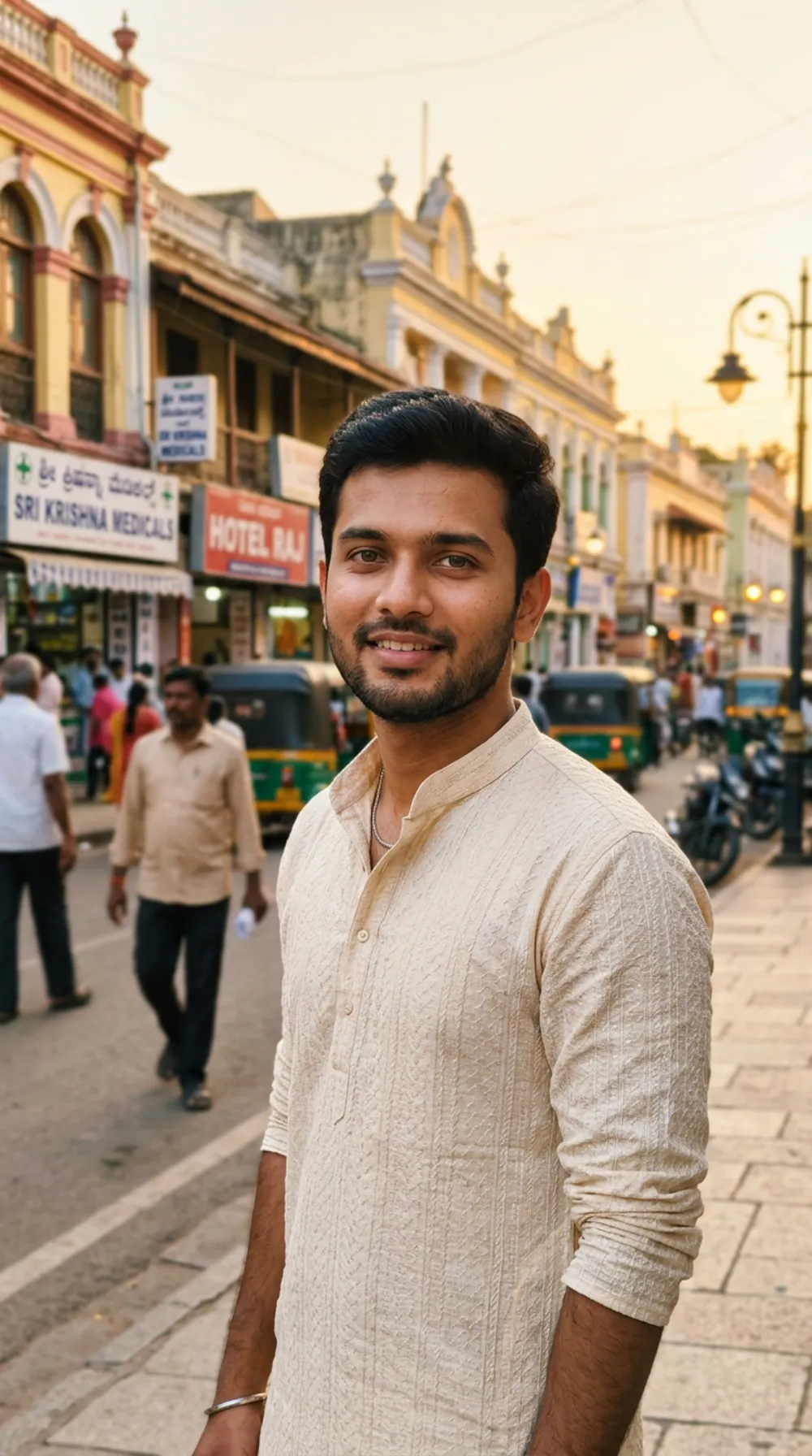
Test 1: the starting photo
I generated a simple street portrait for this test: a young man in a cream kurta on a busy old Mysuru-style market street at golden hour. It has a lot of detail on purpose, with shop boards, auto-rickshaws and people walking behind him. Busy backgrounds are where sketch prompts get tested.
Test 2: graphite pencil sketch
Prompt used: Turn this photo into a realistic graphite pencil sketch on cream paper. Keep the same face, expression, kurta and pose exactly. Soft shading, visible hatching, light smudges, plain paper background. No text, no colour.
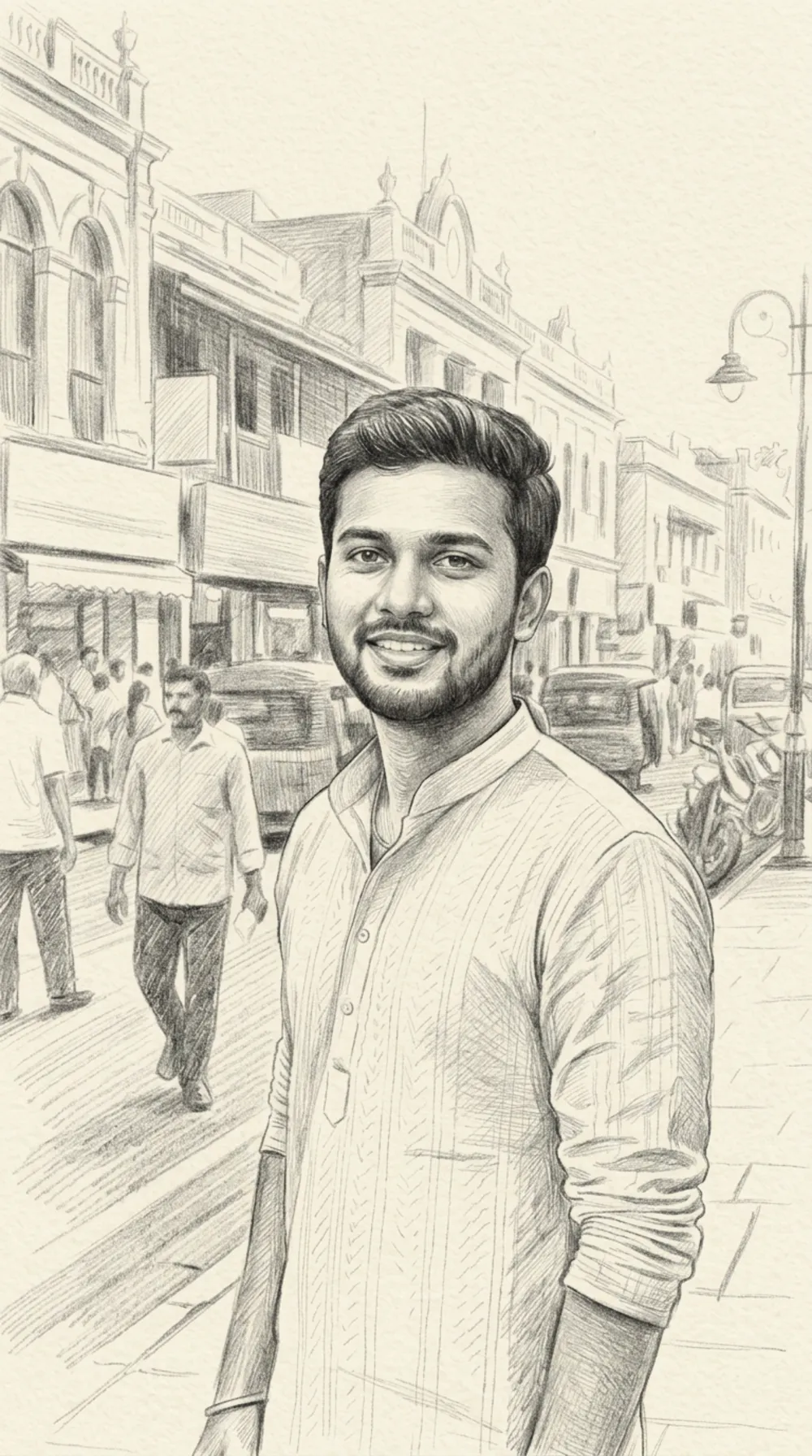
What worked: the face, the beard, the pose and the folds of the kurta all stayed true to the photo. The street behind him became lighter linework, which is exactly how a real sketch artist would handle it. What I did not love: the shop boards turned into a few unreadable scribbles and the hatching on the road is a bit too regular. I would not call it hand-drawn, but it is a good result for a birthday card.
Test 3: the same photo as a watercolor
For a warmer look, I reused the same photo with a different medium line and kept the rest of the structure.
Prompt used: Turn this photo into a soft watercolor painting with loose brush strokes, visible paper texture and gentle colour bleeds. Keep the same face, expression, kurta and pose exactly.
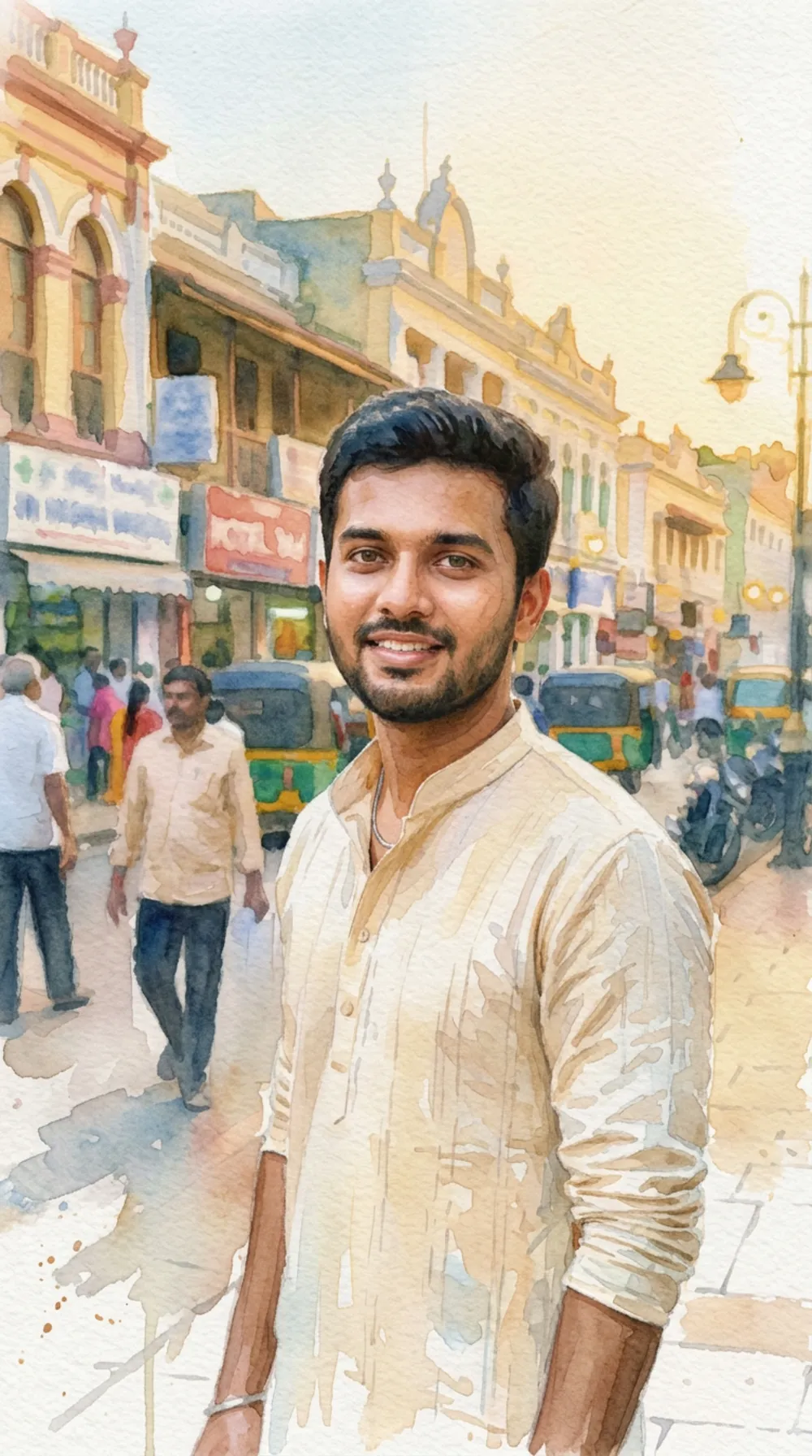
The colours of the street survive, the sky bleeds nicely and the face is still clearly the same man. The drips on the kurta look good, though they slightly muddy the cream colour. If your clothes colour matters, add “keep the kurta cream and clean”.
Which photos give the best sketch
After a dozen tries, I noticed a pattern. Photos with soft daylight, a face that fills at least a third of the frame and a plain or slightly blurred background give the best sketches. Harsh flash, sunglasses and heavy filters confuse the model. If you only have a filtered photo, try a different one before blaming the prompt. A good input saves more time than any clever wording.
Exact steps on your phone
- Pick the original photo from your gallery, not a screenshot or a WhatsApp copy. Compressed photos give blurry faces in the sketch.
- Crop to the person first. A tight head-and-shoulders crop gives a more detailed face than a full-length shot.
- Open Gemini, tap the plus icon, upload the photo and paste the prompt.
- If the face drifts, reply in the same chat: “The face is slightly different. Redraw it closer to the original photo, nothing else changes.” A small correction works better than starting over. My post on keeping the face the same in Gemini explains this in detail.
- Download the full-size image. Google’s page notes that downloads are 1K without an AI plan and 2K with a Google AI plan, so expect a smaller file on a free account.
Medium words that change the result
- Graphite pencil, cream paper: soft, realistic and the safest for faces.
- Charcoal drawing: darker and more dramatic, but the face loses detail faster.
- Ink line sketch: clean lines, good for logos and cards. Add “no shading”.
- Coloured pencil: brighter than graphite, keeps your clothes colour.
- Watercolor: loose and warm, but the least faithful to small details.
If the background is distracting, first clean it using my remove object prompt guide or swap it with the background change prompt, then make the sketch. Doing it in two steps gives cleaner linework.
Common mistakes that spoil the sketch
- Using a group photo. With four faces, at least one always drifts. Sketch one or two people at a time.
- Using a dark or blurry photo. Gemini invents features in shadows, and the sketch no longer looks like the person.
- Skipping the keep list. This is the biggest reason for “he looks different now”.
- Asking for text on the sketch. Names and dates usually come out misspelled. Add them later in Canva or Snapseed.
- Selling it as hand-drawn art. It is an AI image. If you use it for a gift, that is fine. If you sell it as a commission, say how it was made.
- Using photos of other people without asking. Get permission before you edit and share someone’s face.
Final thoughts
Start with the graphite template on one clean portrait and judge only the face. If the face is right, then play with charcoal, ink and watercolor. Save the template in your notes app so you can reuse it for birthdays, anniversaries and festival cards.
FAQ
Is the Gemini photo to pencil sketch prompt free?
You can edit images in the Gemini app on a personal account, but daily limits and image quality depend on your plan and region. Check the Gemini help page, as these change.
Why does the face look different in the sketch?
Usually the prompt had no keep list, or the photo was dark or low resolution. Use a sharp, front-facing photo and add “keep the same face and expression exactly”.
Can I make a sketch with a white background?
Yes. Replace “cream paper” with “plain white paper” and add “no background scenery”. The person will then stand alone, which also reduces mistakes.
Can I print the sketch?
Yes, for personal use. Download the largest version available and avoid enlarging it beyond A5, because AI images are not made for large prints.