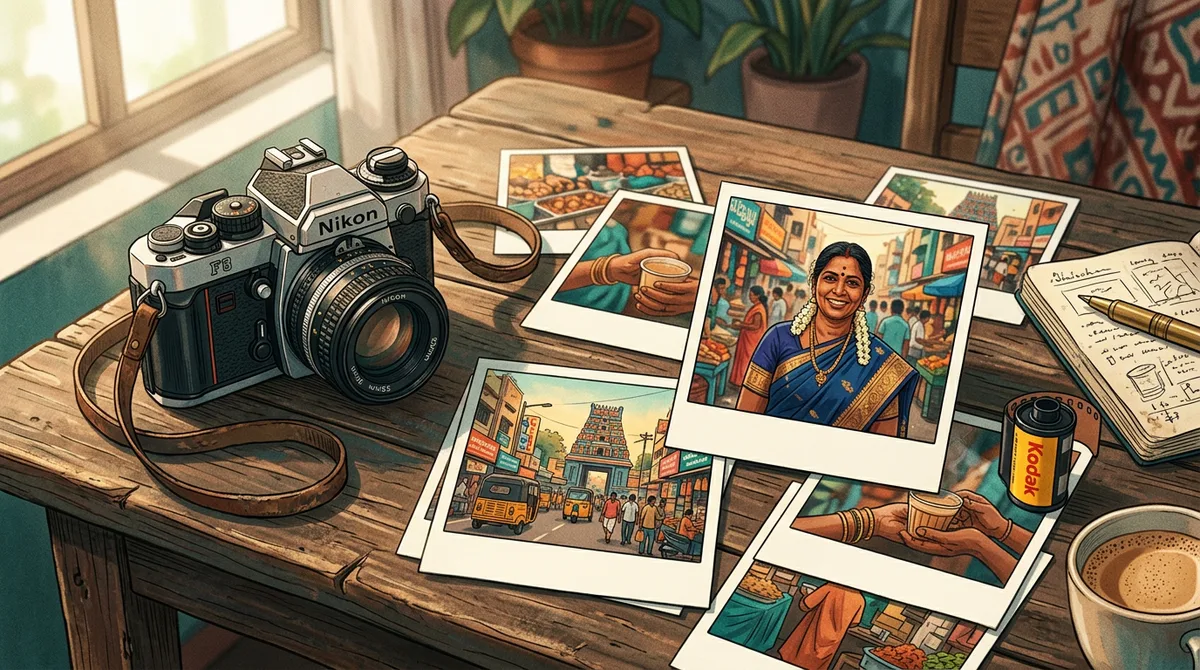
My mother has a shoebox of old family photos. Faded orange, soft grain, a white border, someone’s thumb in the corner. People now spend money on apps just to fake that look. I wanted to see if one good Gemini retro film photo prompt could do it without wrecking the face or making the picture look like a cheap filter.
It can, but only if you describe the camera and the film, not just the word “vintage”. Below are three templates I ran myself: a 1970s studio portrait, a 1990s Kodak street shot and a 2000s disposable camera snapshot.
Why “vintage” alone gives a bad result
If you type “make this photo vintage”, Gemini guesses. Sometimes you get sepia, sometimes a brown tint with scratches, sometimes a painting. “Vintage” is a mood, not a look.
Old photos looked the way they did because of real things: the film stock, the flash, the lens, the paper. When you name those, Gemini has something concrete to copy. Google’s own guidance for its image model says to describe the scene with specifics and, for photos, to mention camera and lens details. You can read it in the official Nano Banana tips from Google.
The four ingredients of a retro film look
- Decade. “1970s”, “1990s” or “early 2000s”. This sets clothes, colour and mood.
- Film or camera. “Kodak Gold 200 35mm”, “black and white studio portrait”, “disposable camera with flash”.
- Flaws. Grain, faded contrast, light leak, blown highlights. Real old photos are imperfect, so ask for imperfection.
- What stays. If you are editing your own photo, say the face, clothes and pose must stay the same. I cover this in detail in how to keep the face the same in Gemini.
The master template
This is the base gemini retro film photo prompt I start every edit from.
Use this to turn your own photo into a retro one. Upload the photo, then paste:
Prompt: Turn this photo into a [decade] [film or camera type] photograph. Keep the person, face, clothes, pose and framing exactly the same. Add [grain level], [colour description], [flaw like light leak or flash glare]. It should look like a scanned print from an old family album. Do not add text, dates or frames.
Notice “do not add text, dates”. Gemini loves to add a fake orange date stamp, and it usually looks wrong.
Look 1: 1970s black and white studio portrait
This is the classic photo-studio portrait that every family has on a wall. Soft window light, a plain cloth backdrop, calm expression.
Prompt used: 1970s black and white studio portrait of an Indian woman in a silk saree with jasmine in her hair, soft window light, fine silver grain, slightly faded contrast, matte print with a white border feel, classic photo-studio look. No text, no watermark.
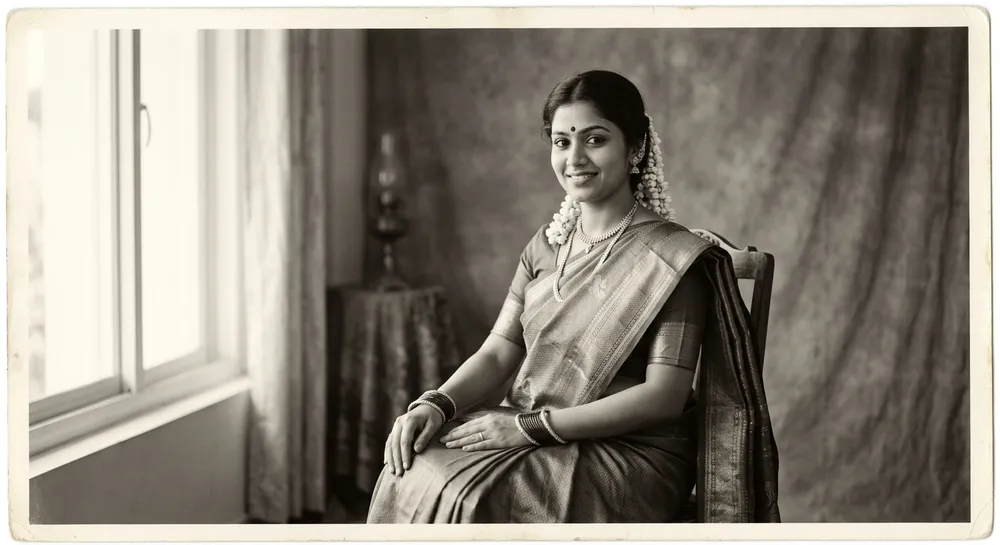
What worked: “fine silver grain” and “slightly faded contrast”. Without those two phrases the first try was too sharp and looked modern. What did not: asking for “scratches” made Gemini add ugly white lines across the face, so I dropped it.
Look 2: 1990s Kodak street photo
This is the warm, slightly green-yellow look of a 35mm family trip photo, taken with an on-camera flash in the evening.
Prompt used: Photo shot on 1990s Kodak Gold 200 35mm film: a young Indian man in a checked shirt standing beside a vintage Ambassador car on a Mysuru street, warm faded colours, visible film grain, slight halation, flash-lit, candid 90s family album look. No text, no watermark.
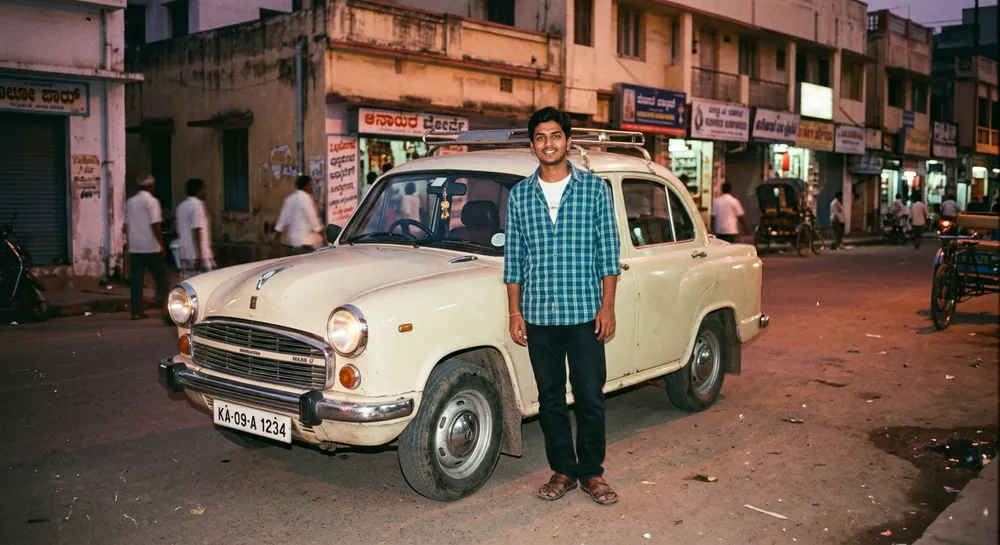
The film name did most of the work here. “Kodak Gold 200” pushed the colours towards warm yellow and red. “Halation” is the soft red glow around bright lights, and it is what makes it feel like film instead of a phone filter.
Look 3: 2000s disposable camera snapshot
Direct flash, slightly blown highlights, saturated colour, a casual crop. Think college trip photos.
Prompt used: 2000s disposable camera style photo: two Indian college friends laughing on a Bengaluru terrace at golden hour, direct flash, slightly blown highlights, soft focus, saturated reds and greens, light leak at the edge, casual snapshot. No text, no date stamp, no watermark.

The light leak on the left edge came from the prompt, and I liked it. Ask for it only once, though. When I wrote “light leak” three times, the whole photo turned orange.
Which look suits which photo
- Black and white 70s: portraits, parents, wedding anniversaries, temple visits.
- Kodak 90s: travel, street, cars, family trips.
- Disposable 2000s: friends, parties, terrace and college photos.
If your photo is a close-up portrait, start with the 70s look. Faces survive black and white better than they survive heavy colour grading. For old, damaged photos you want to repair instead of age, use my old photo restoration prompt instead.
Common mistakes with a Gemini retro film photo prompt
- Only writing “vintage”. Name the decade and the film or camera.
- Too many flaws. Grain, scratches, dust, leaks and fading together produce a dirty image. Pick two.
- Forgetting “keep the face the same”. On edits, Gemini may restyle the face to fit the era.
- Accepting a fake date stamp. Always add “no text or dates”.
- Modern details. Phones, LED lights and new clothes ruin an old scene. Mention the clothing style if you are generating from scratch.
Quick fixes when the result looks wrong
Too modern and clean? Add “heavy grain” and “faded blacks”. Too dark and muddy? Say “bright, even exposure”. Skin looks plastic? Write “natural skin texture, visible pores, no smoothing”. One change per retry, so you know what helped.
How I tested these prompts
I ran each prompt several times in the Gemini app and kept the best of the batch, so treat the examples as a good result, not a guaranteed one. The pattern was consistent though: the prompts with a film name and two specific flaws gave a believable old photo almost every time, while the vague ones gave a different style on every try.
One more habit that helps: save the version you like. Once a prompt gives you a look you love, copy it into your notes and only swap the subject next time. That way a family wedding photo, a temple photo and a friend’s birthday photo all match, and your whole album looks like it came from the same roll of film.
For a bigger set of ideas, my guide to writing AI image prompts explains how to build any prompt from subject, light and style. Use it when you want a look this article does not cover, such as a 1980s magazine cover or an old postcard.
FAQ
Can I use my own photo?
Yes. Upload it and use the master template. Keep the “face stays the same” line.
Does it work in the free Gemini app?
Image generation and editing are available there, but daily limits apply and can change. Check the app for your current limit.
Why does my photo get a date stamp?
Gemini copies the old-camera idea too literally. Add “no text, no date stamp” to the prompt.
Which look is easiest for beginners?
The 70s black and white portrait. It has the fewest colour variables, so it fails less.
Wrap-up
A good gemini retro film photo prompt is simple: it is decade plus film plus two flaws plus a line that protects the face. Try the black and white one first, then change the decade and see how the colours move. If you try it on a family photo, I would love to know which look your parents liked most.